
We know that admin is a headache, that's why we've made it easy for you in the 'Products' section in Treatwell Connect. Here you can add your inventory, including your supplier lists, and link them to your products. Take a look below to find out how.
How can I create a supplier in Connect?
To create an order for new products and generate an invoice, you'll first need to set up a supplier (or company) that you purchase your products from in Connect. Here's how:
Go to Connect on a desktop
Click 'Products' at the top of the page
On the left, click 'Suppliers'
Click the 'add new' button in the top right corner
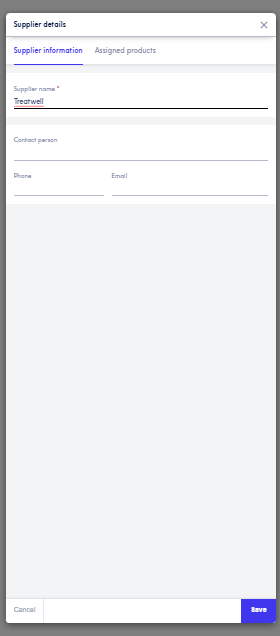
Add the supplier's name and contact details in the box that opens
Click 'Save'
How can I assign products to a supplier?
After creating your supplier list, you'll need to check which products you order from this supplier, and link them together:
Go to Connect on a desktop
Click 'Products' at the top of the page
On the left, click 'Suppliers'
Click the name of the supplier that you just added
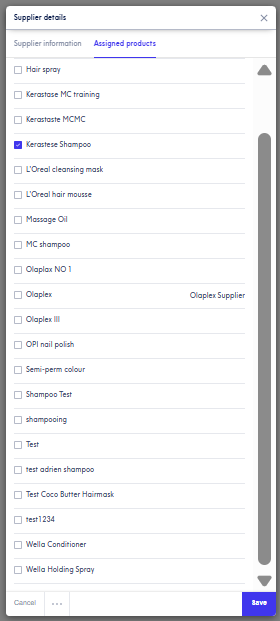
You'll see a list of all of the products you offer
Tick the boxes next to the products that you order from this supplier
Click 'Save' when you're done
How can I delete a supplier?
In the future, you might change suppliers. In which case, deleting a supplier couldn't be easier:
Go to Connect on a desktop
Click 'Products' at the top of the page
On the left, click 'Suppliers'
Click the name of the supplier you need to delete
At the bottom of the box, click the '...' button
Click 'Delete'
What else do I need to know about the 'Products' section to manage my stock effectively?
In case you need to add a new product, take a look here to find out how.
In case you want to find out more about how to create and manage a product order, take a look here.
Was this article helpful?