
When you're low in stock of a product, you can use Treatwell Connect to generate a new product order. Using this tool, you can generate an invoice to send to your supplier, as well as manage the delivery of products so you have an accurate inventory of your products. Take a look at the article below to find out how.
How can I create a new Product Order Connect?
To create a product order and generate your invoice, just follow the steps below:
Go to Connect on a desktop
Click 'Products' at the top of the page
Click 'Orders' on the left-hand side
Click 'New product order' in the top right corner
Select which supplier you are ordering from
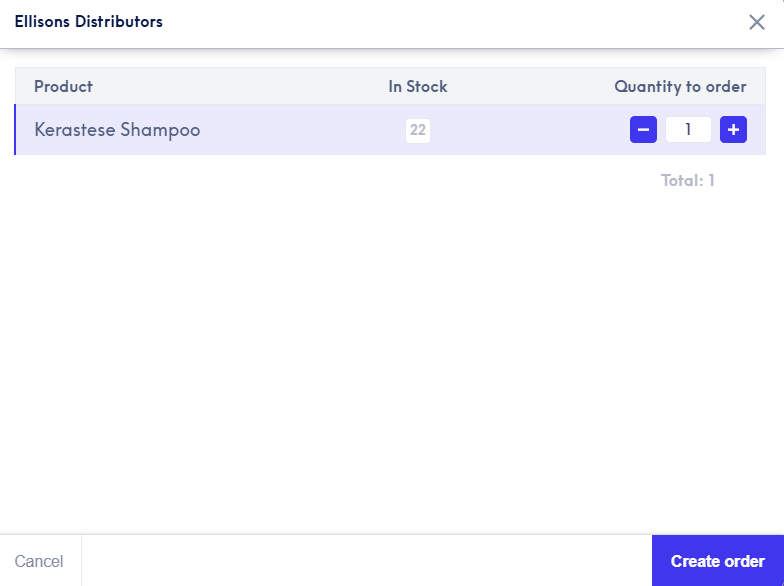
In the list of products assigned to that supplier, select how many of each you need
Click 'Create order' in the bottom right corner
You will be instantly created and ready to download as a PDF or view within Treatwell Connect.
You'll now see your new order and some basic details displayed on the 'Orders' page.
How can I share my product order with my supplier for processing?
Go to Connect on a desktop
Click 'Products' at the top of the page
Click 'Orders' on the left-hand side
Click on the order you would like to share
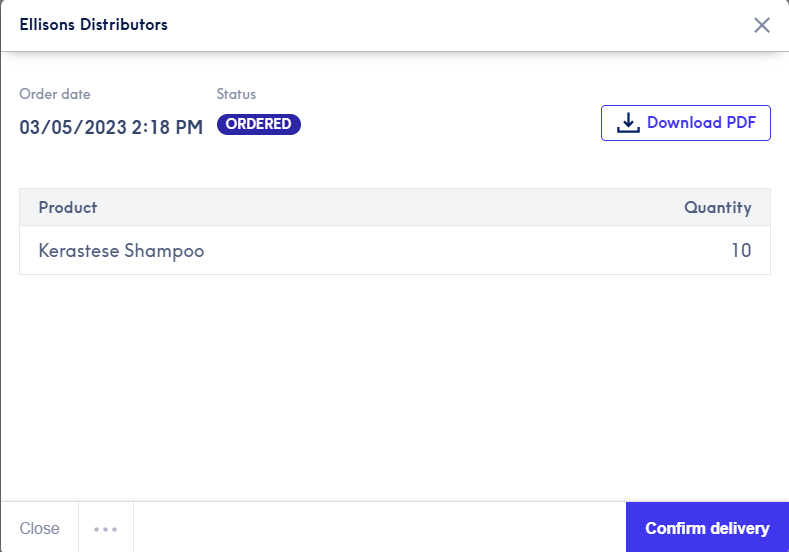
Click 'Download PDF'
The order form will be downloaded, and you can email it to your supplier
How can I confirm the delivery of a Product Order?
Once you've received the shipment of your product order in the salon, you should confirm the delivery in Connect. This will update your product inventory automatically. Here's how:
First, check which items you received in your delivery
Go to 'Products' in Connect on the desktop version, and then 'Orders'
Click on the order you made
In the bottom right corner, click 'Confirm delivery'
Enter in the next screen how many of each product were received
Click 'Mark as delivered'
The order will now appear as 'Delivered' status, and your product inventory has been updated.
Remember, if you've placed more than one order, it will sit below any order that you have yet to mark as received.
What else do I need to know about the 'Products' section to manage my stock effectively?
In case you need to add a new product, take a look here to find out how.
In case you want to find out more about how to link your suppliers to your products, take a look here.
Was this article helpful?