
Adding the treatments and services you offer is easy and quick to do using Treatwell Connect. Take a look at the article below to find out how.
How can I add a new service to my menu?
Go to ‘Menu’ in the web version of Connect.
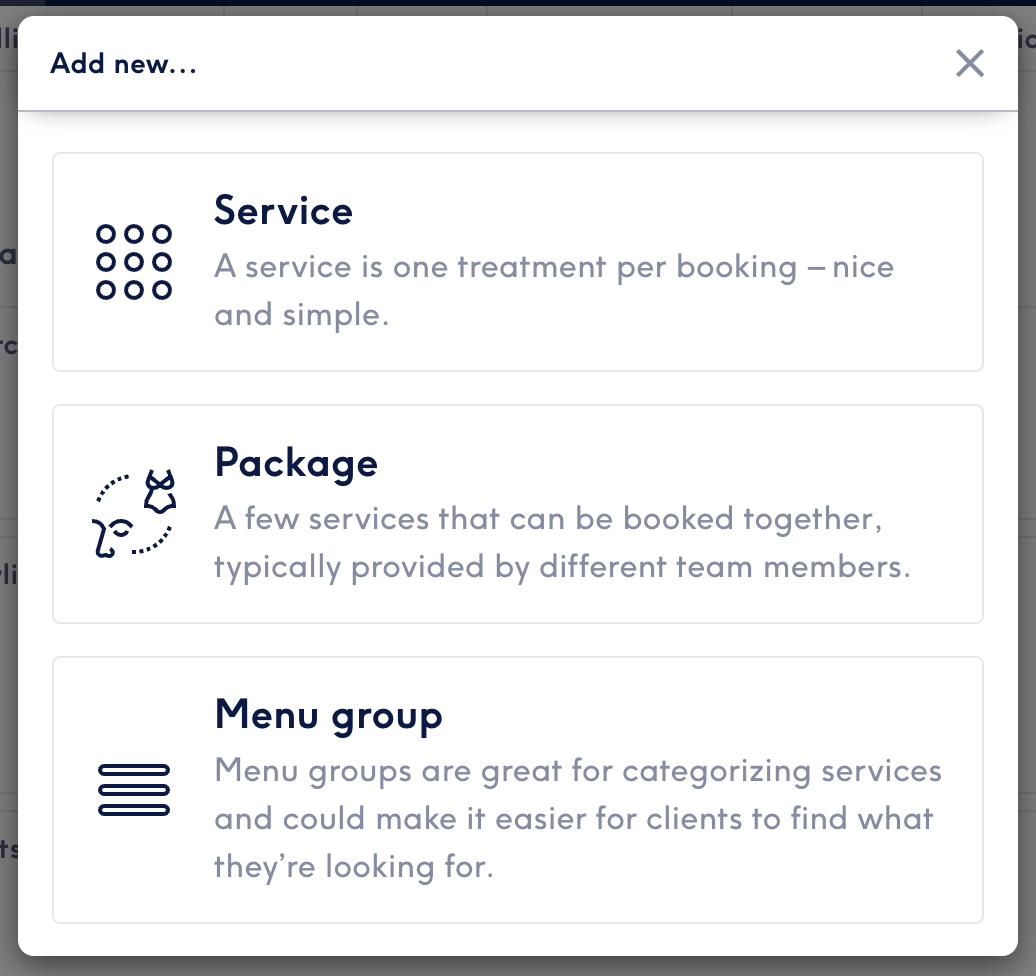
Click ‘Add new...’ on the right-hand side, then ‘Service’ in the pop-up box.

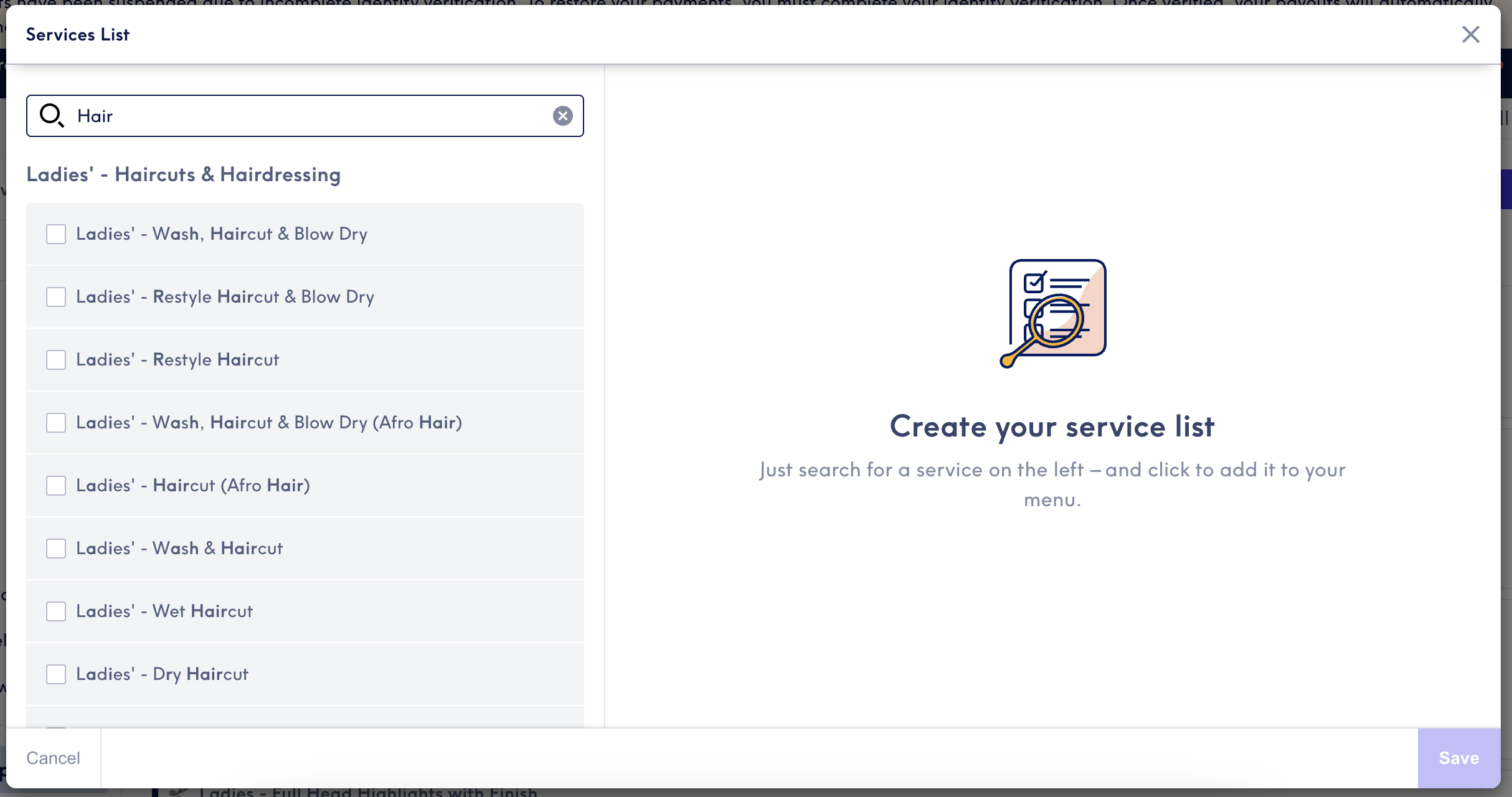
Type in the search box, browse through the list that appears, and click on the services you want to add.
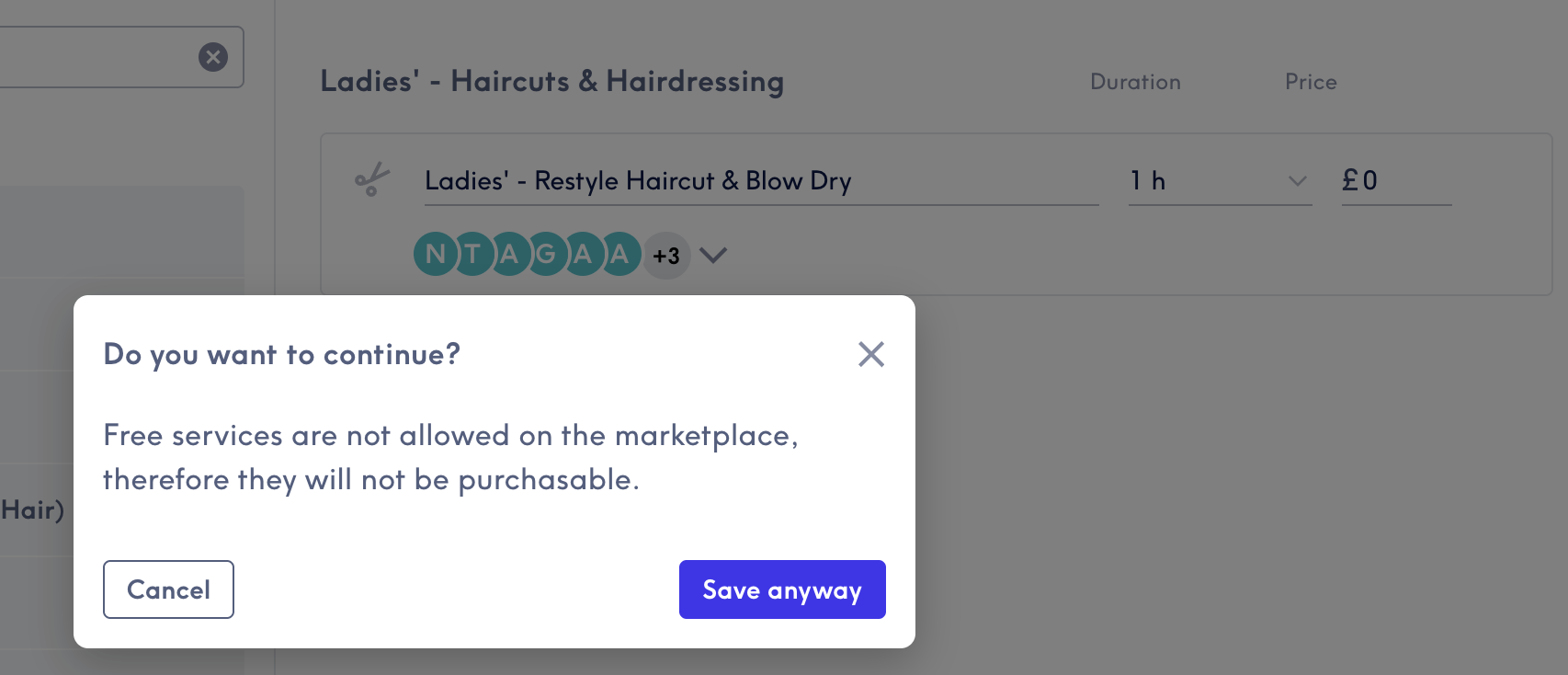
Adjust the name, the duration of the treatments, and add in prices (you can add sales prices later to attract more clients).
Please note that if you don't add a price, the service will not be bookable on the Marketplace.
Then, select which members of your team perform each treatment.
When you’re happy, click ‘Save’.
You'll now see the services on your menu, with a yellow 'New' icon next to each one.
If you want to move the service, hover over the scissors to the left of its name, then click and drag it up or down.
Important: After you've added the services initially, you'll need to go back and add any processing time, clean-up time, restrictions, and a treatment description.
How can I amend a service or add all the necessary details?
From time to time, you may need to make changes to your menu.
From updating your prices to editing service duration, changes can be made in a few clicks, so that you can get back to your busy day in no time. Below you'll find all the information you need for editing services.
How do I change the price of a service?
Go to ‘Menu’ in the web version of Connect and click on the service.
Simply click on the price and type in what you'd like to change it to.
If you want to boost your business further, you can also choose to include a sales price to help you attract more customers or highlight specific services.

The option to add a ‘Sales price’ is right next to ‘Price’ on the service.
Please note that changing the price of a service will not change the price of any services that have already been booked
How do I change the duration of a service?
Go to ‘Menu’ in the web version of Connect and click on the service.
Click on the drop-down arrow and select the length of time that the service takes.
Then save your treatment and the new duration will be reflected in all your future appointments
Please note that changing the duration of a service will not change any services that have already been booked.
How do I add or change processing times?
For some service types, like hair colouring, you can add processing time so that you are free for other clients while the treatment is taking effect.
To do this, first click on the service
Tick the box to the left of 'Use processing time' to turn this feature on.
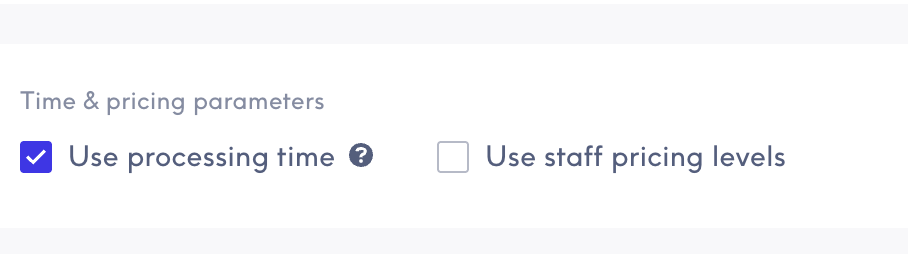
The duration will then be split into 'Application time', 'Processing time', and 'Finishing time'.
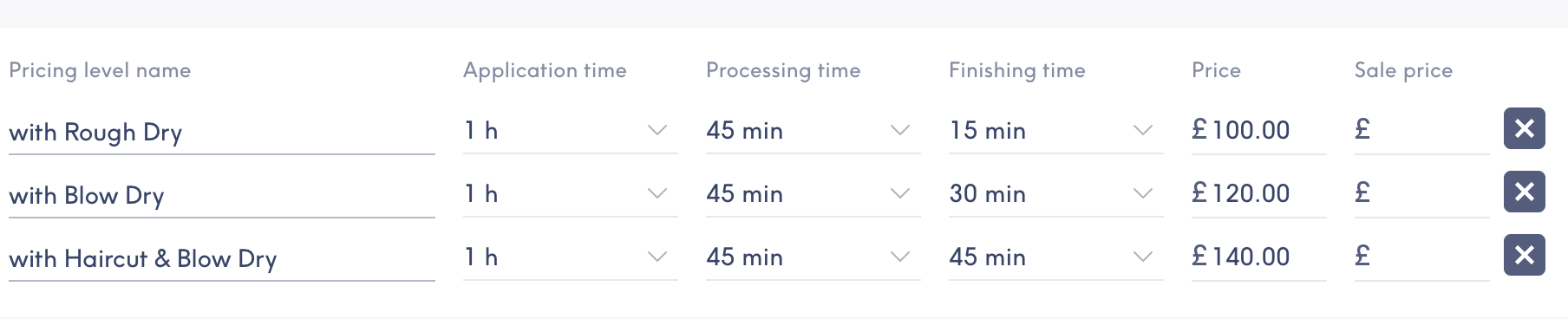
Select the length of time you need for each section by clicking on the drop-down arrows.
Note that the 'Processing time' you choose will automatically apply to all pricing levels.
How do I add or change the cleanup time?
Want to block out some time after each appointment to clean up?
Go to 'Menu' in Connect.
Choose the service you want to edit, and click on it to open the item details.
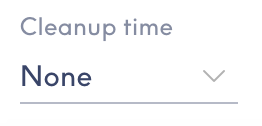
Underneath 'Add pricing option,' you can select the cleanup time you need by clicking on the drop-down arrow.
How do I change or add assigned team members to a service?
You can either do this from the service itself or within the team member section:
From the 'Team' section, choose who can be booked for the service by ticking or unticking each team member.
From the 'Menu' section, click on the service you want to amend, and tick or untick the names of the team members you want to add/remove.
If you want to know how to set up your team in Connect, take a look at this article here.
What are maintenance services, and why should I add them?
You can make the most out of your partnership with Treatwell by setting up your menu in a way that encourages customers to book with you repeatedly. This lets you build up a relationship with regular clients – and you don’t have to pay new customer commission when they return again and again.
A great way to make this happen is by offering maintenance services, so your clients can come back to your salon rather than having to look elsewhere.
Anything that means your clients can return to you to upkeep a service you originally provided is a maintenance service, including:
Infills, refills, and removal for gel nails
Nail extensions and eyelash extensions.
Top ups for semi-permanent makeup, plus root colouring and fringe trims are also popular.
Adding these will really help increase your bookings and build your base of repeat customers.
On top of that, it saves you time when adding a direct or walk-in appointment to Connect.
Still haven't found all the information you need? Check out the links below for more info on optimising your menu:
Only have availability for a service on certain days, find out here how to ensure a service can only be booked on specific days
Want to have a more organised menu? Find out how to categorise and organise your menu here
Want to highlight a specific service on the Marketplace? Find out how to do this here
Was this article helpful?