
When your menu is well-organised, it's easier for your potential customers to find what they're looking for quickly (meaning a higher chance of getting booked). It also makes your profile look slick and professional, helping you create a good first impression. Here are our top tips!
What are menu groups?
Make the booking experience smoother for your clients by organising services into groups (for example, "Manicures & Pedicures" and "Eyebrows & Eyelashes").
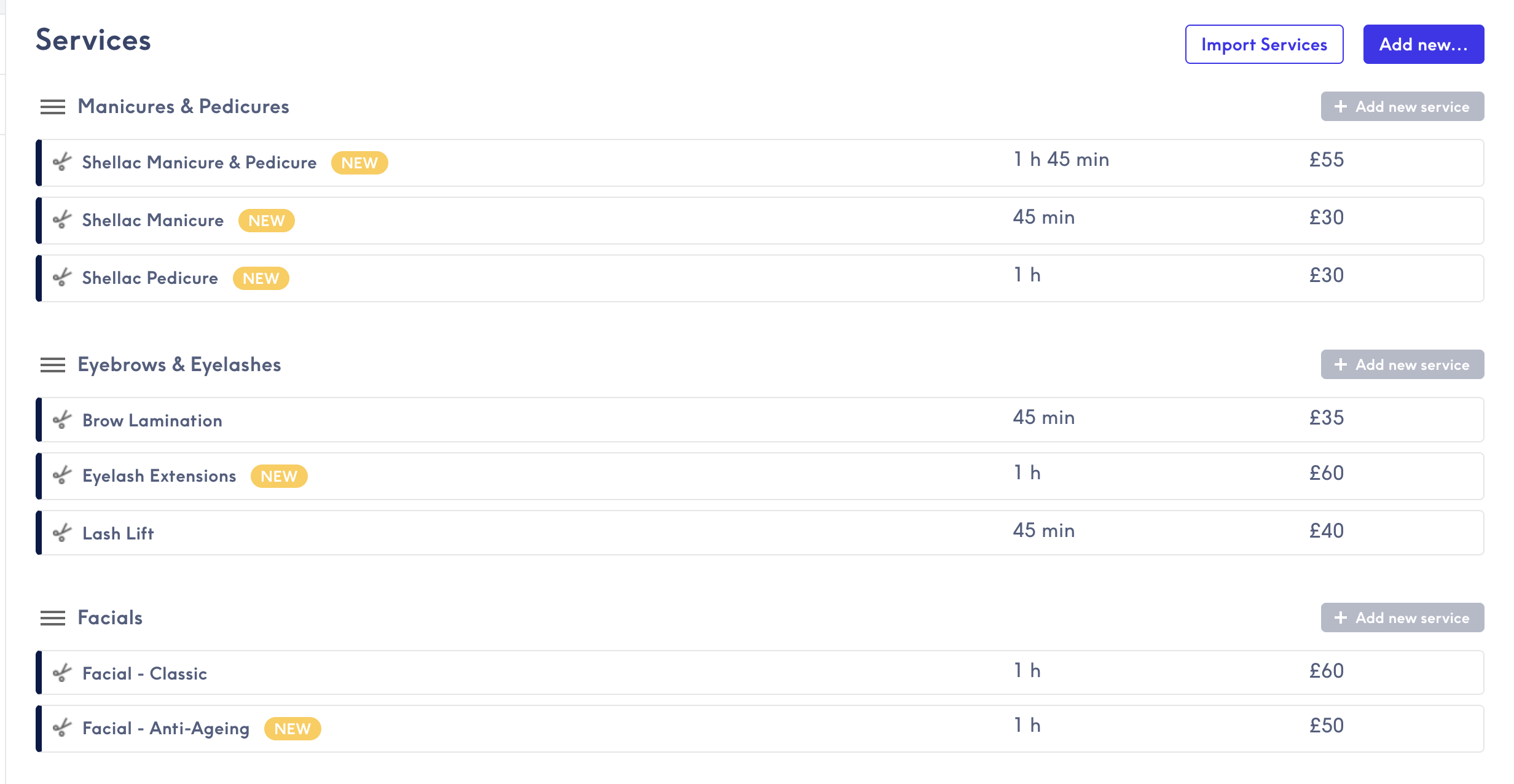
If you offer multiple services of the same type, consider creating separate groups to organise them, making it easier to find each service.
For example: "Ladies - Hair Colouring & Highlights" could be divided into two groups: "Ladies - Hair Colouring" and "Ladies - Highlights". A way to organise this would be:
Menu group: "Ladies - Highlights"
Treatments: Half Head Highlights, Full Head Highlights, Full Head Highlights with Blow Dry, etc.
Price levels: Short hair, Medium length hair, Long hair
NOTE: Menu groups can only be configured on the Treatwell Connect web version.
How do I add menu group names?
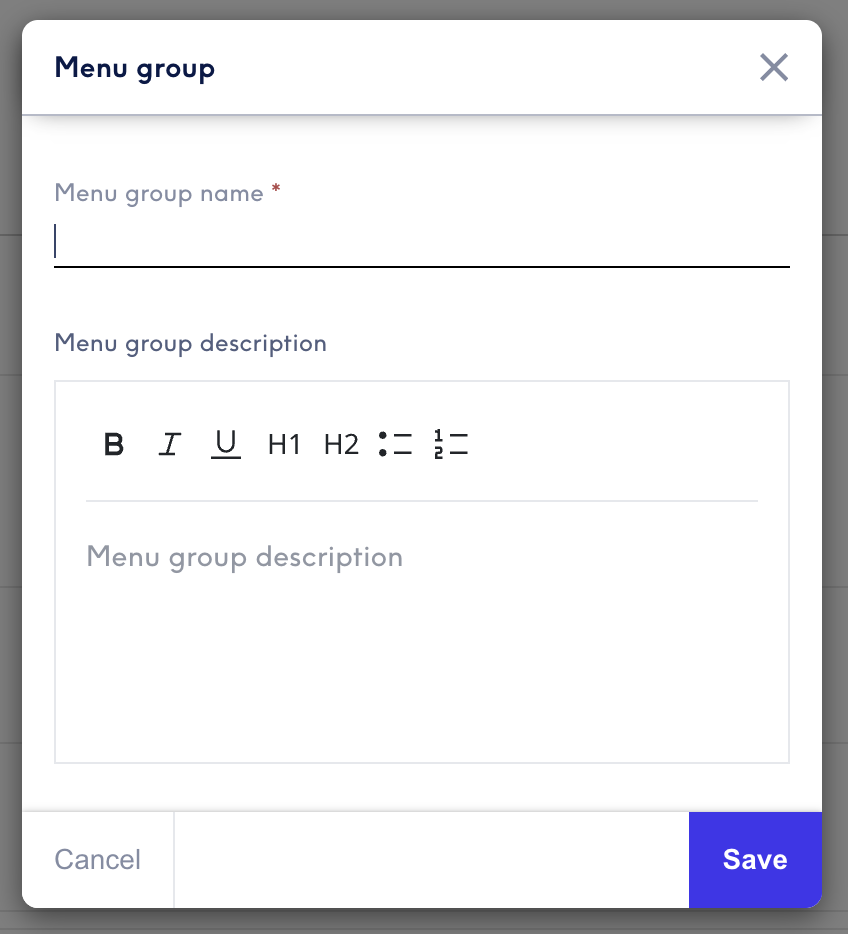
To add a new group name:
Go to Treatwell Connect on the web version and then go to your Menu
Click 'Add New' at the top right corner of your menu in Connect
Click 'Menu Group'
Type in the group name and click 'Save'
Hover over the three lines on the left of the name, then click and drag the group into the position you want
How do I edit menu group names?
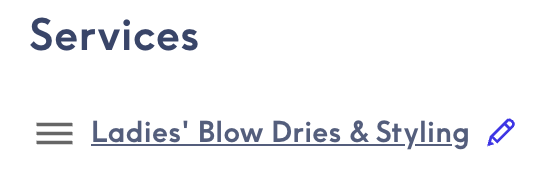
To edit a group name:
Go to Treatwell Connect on the web version and then go to your Menu
Hover your mouse over the name of your group
You’ll see a pencil icon appear
Click the pencil, edit the name, and press 'save'
How should I format menu group names?
When writing your group names, keep them consistent with capital letters at the start of each word (and everything else in lowercase). Also, use the ampersand symbol (&) rather than the word "and" (it keeps the names shorter).
For treatments that tend to be gender-specific – particularly hair and waxing – make sure you put 'Ladies' or 'Men’s' in the group title so that clients can book the right service for them.
What order should I put groups and services in?
We suggest organising the groups and their services based on popularity. Placing the most popular services at the top ensures that clients can easily and quickly find them.
How can I colour-code my services to help organise my Treatwell Connect?
To help get a better overview of which treatments you have scheduled for the day, it's also possible to colour-code your services.
For example, you could set all massage services to appear in your calendar in purple, hair services in yellow, etc.
This is done individually for each service. You'll see a small white box next to the service title; click it, and select which colour you'd like that service to appear in on your calendar.
Please note that the colour coding will only appear in Treatwell Connect and will not be visible to customers on the Marketplace
Was this article helpful?