
Keeping your Treatwell Connect calendar up to date is important to ensure that we can help you manage your salon and online bookings as seamlessly as possible. When your calendar is updated, your clients can only book you when you are actually available and not during the hours when you already have an appointment or are busy. Take a look at this article to find out more about how to keep your calendar up to date.
Why is it important to show my real-time availability?
We're here to get more clients through your door, and we do this by advertising your white space to customers searching on Treatwell. What we don't want to do is send you customers when you already have appointments, as it becomes a double booking, and you'll need to cancel or reschedule those customers.
Showing your real-time availability by managing your Connect calendar is key to ensuring you get the most out of your partnership with Treatwell.
Whether you are using Connect as your main booking system or planning to use it alongside a different software, using the calendar properly is the most effective way to grow your business.
Plus, the more reliable you are, the higher up you will sit on Treatwell, helping you get seen by more customers.
How can I block my calendar availability?
We always recommend adding appointments to your Treatwell Connect calendar instead of blocks. That way, you can make the most of your Treatwell Connect by receiving more reviews, up-to-date reports, and generally allowing you to manage your time better. However, we know that sometimes you just need to block some time for a quick break or time off. Here is how:
When you have a new block to add, click on any empty space in your calendar.
A window will appear, inside it, at the top, select 'Block'.
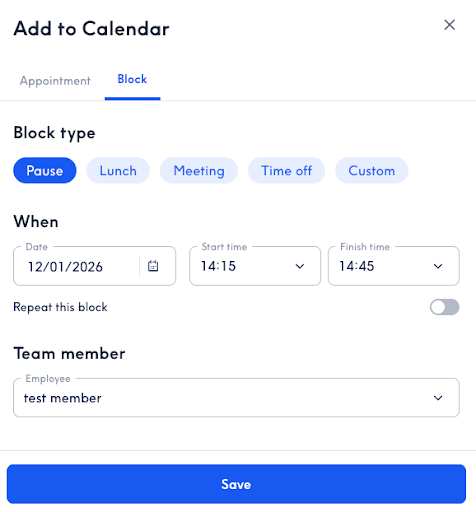
Enter all the necessary information:
Choose the type of block you want to add (Pause, Lunch, Meeting, Time off, or Custom).
Set the date, the start time, and the finish time.
You can also repeat the block. Choose the interval and the end of the repetitions.
Assign the block to a team member.
Check the details of the block before clicking 'Save'.
In case you need to add an appointment instead, just take a look at this article to find out how.
How can I unblock my calendar availability?
We know that sometimes plans change, and you may need to remove a calendar block. Take a look below to find out how:
If the block that you’ve added is a one-time event, click on the block to open it in the Calendar.
Click on ‘Remove block’ to remove it.
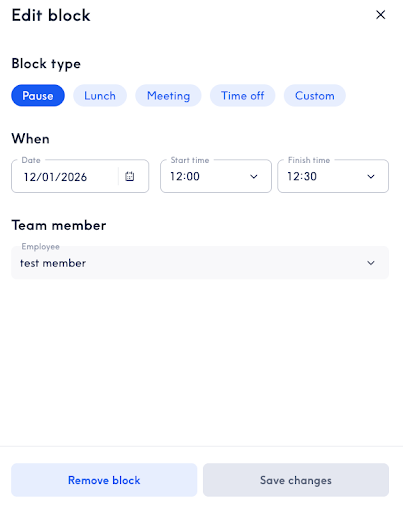
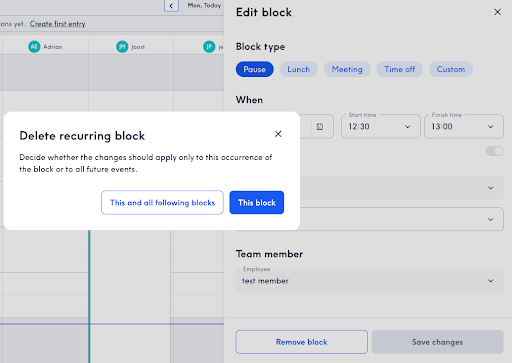
If the block you have set up is a recurring event, when you click 'Remove Block', you’ll see the option of deleting just this one block or all future occurrences.
Suppose the time in your calendar is unavailable because of your salon's working hours or staff rota. In that case, you’ll need to update your availability in the respective area of Connect so that the calendar turns from grey to white and you can start receiving bookings. Check our articles for your team rota and opening hours here if you’re unsure how to do that.
Was this article helpful?