
Having a cancellation policy in place that best suits your customers' needs allows them to manage their bookings independently, saving you precious time during your day if their plans change. We know, however, that cancellations can cause a loss of business; that's why with Treatwell Connect, you have the flexibility to change your cancellation policy to what suits you best.
What cancellation policy options do I have?
Treatwell Connect allows you to set your cancellation policy to 0, 2, 24, 48, or 72 hours.
What should my cancellation policy be and why?
You are in complete control of your cancellation policy, but we'd recommend a flexible policy such as 2 hours:
This way, your policies are attractive to customers, and if you do receive a last-minute cancellation, you still have time to receive another booking (either from Treatwell or walk-in) to fill the slot.
You should consider that having a strict cancellation policy (for example, longer than 24 hours) will significantly decrease the number of bookings you receive.
With a strict cancellation policy in place, it's likely that any customers who cancel their booking and are not eligible for a refund will contact you directly to dispute this.
Our trend data shows that only a very small percentage of customers cancel their appointments within 2 hours, meaning the impact of a flexible cancellation policy is minimal.
The longer you set your policy, the stricter it is for customers. For example, a 24-hour cancellation policy means that if a prepaid customer cancels their appointment within 24 hours of its start time, they aren't eligible for a refund. If they cancel more than 24 hours in advance, they will be refunded automatically.
How do I change my cancellation policy?
To change your cancellation policy:
Go to settings on a desktop or web version of Treatwell Connect
Click 'Online Bookings' on the left side
Click 'Settings' at the top of the page
Select your preference from the 'Cancellation Policy' drop-down menu.
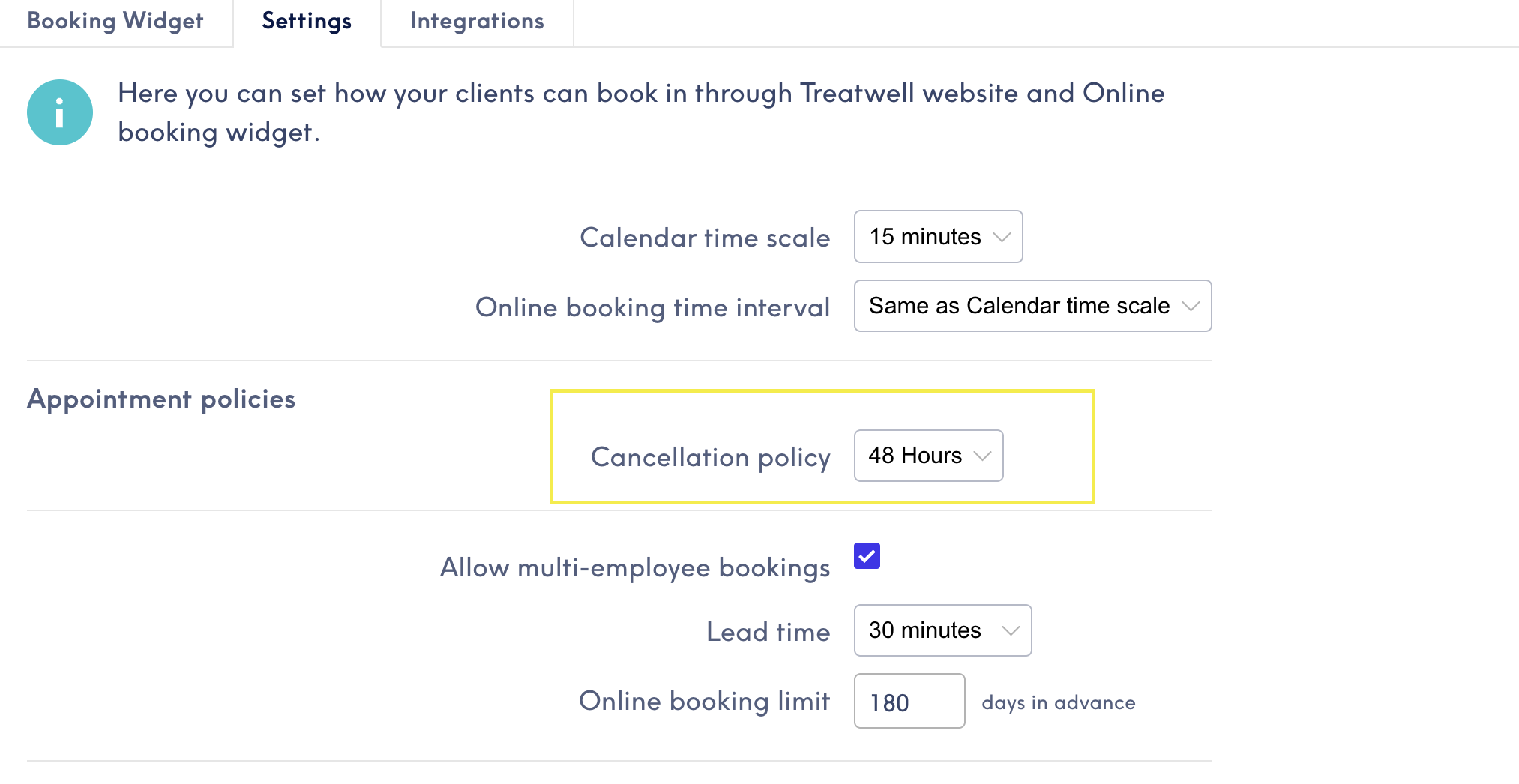
Important: Remember that changing your policy will only impact bookings made after that time and not pre-existing bookings.
Where can customers see my cancellation policy?
To avoid any confusion, we'll display your cancellation policy throughout the customer's booking process, as well as on their confirmation email and in-app.
Was this article helpful?