
Adding descriptions to services increases your chances of receiving a booking, as it means that clients can see exactly what the service involves. Treatments differ from salon to salon, so it’s important that you show what clients can expect when they book with you.
As well as giving them the confidence to make an appointment, this ensures they won’t expect something different from what they receive. They'll also know if they should book any extras separately, like a finish for hair colouring or gel removal with a manicure. To add or update your treatment descriptions, just take a look below.
How do I add a service description?
Add your service description with a few simple steps:
Go to your Menu in Treatwell Connect (web)
Click on the service to open it
Go to the ‘Description’ tab
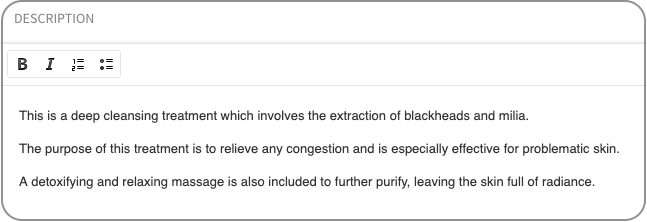
4. Write your description in the box and click ‘Save’
Some services will have a ready-made generic description in the box already. Feel free to remove this, or simply add to it.
NOTE: Service descriptions can only be configured on the Treatwell Connect web version.
What should I put in my service descriptions?
We recommend you write what’s included in the service, as well as the products used and benefits of the treatment. Choose the format you prefer – whether it’s full sentences or a bullet point list. Whatever you go for, keep it simple, clear, and do your best to avoid grammatical errors.
Example:
“If you want even-toned, bronze skin year-round without having to bake in the sun or on a tanning bed, try spray tanning.
First, your therapist asks you how dark you would like your tan.
The tanning solution is applied evenly in long, vertical strokes.
Once the tan is dry, you can dress and your therapist explains how to care for your tan.
Spray tanning is a fast and instantly-effective way to maintain sun-kissed skin, without the exposure to dangerous UV rays.
Your tan will usually last around 5 to 7 days, but this can vary depending on your skin type and how well you care for it afterwards. We always recommend moisturising daily and avoiding exfoliating products or long hot showers to help your colour last as long as possible.”
❌ Here’s what NOT to include in your service descriptions:
Prices
Contact details (e.g. phone number or email address)
Websites
Special characters or emojis in the service name or description (e.g. $@!&*/ ❤️ ✨) – these negatively affect SEO and may stop your services from appearing in search results
Spelling mistakes
What is the 'Good to Know' and 'Restrictions' area, and how is it different to service descriptions?
You can also add 'Good to Know' information as well as service 'Restrictions' - the main difference here is that the service description will be visible when the customer makes a booking, however, the 'Good to Know' and 'Restrictions' areas will also show up in the customer's confirmation email, reminding them of any important information.
How do I add information to the ‘Good to know’ and ‘Restrictions’ to my services?
Go to your Menu in Treatwell Connect (web)
Click on the service to open it
Go to ‘Fine Print’

4. Write the information in the respective boxes and click ‘Save’
What should I put in the ‘Good to Know’ and ‘Restrictions’ sections?
You can add extra information that isn’t part of your description into the ‘Good to Know’ and ‘Restrictions’ sections.
For example:
If you offer pedicures, you could write in the ‘Good to Know’ that you recommend clients wear open-toed shoes to the appointment.
Was this article helpful?