
We know that keeping track of your POS reports can be tricky. That's why we've made it easy for you; you will be able to access your POS reports in the reports tab in Treatwell Connect! Take a look at the article below to find out more about POS reports.
Where can I find my POS reports?
POS reports are gathered in the report section’s “POS” paragraph. Besides transaction reports, POS reports can also be used for tax declarations and accounting.
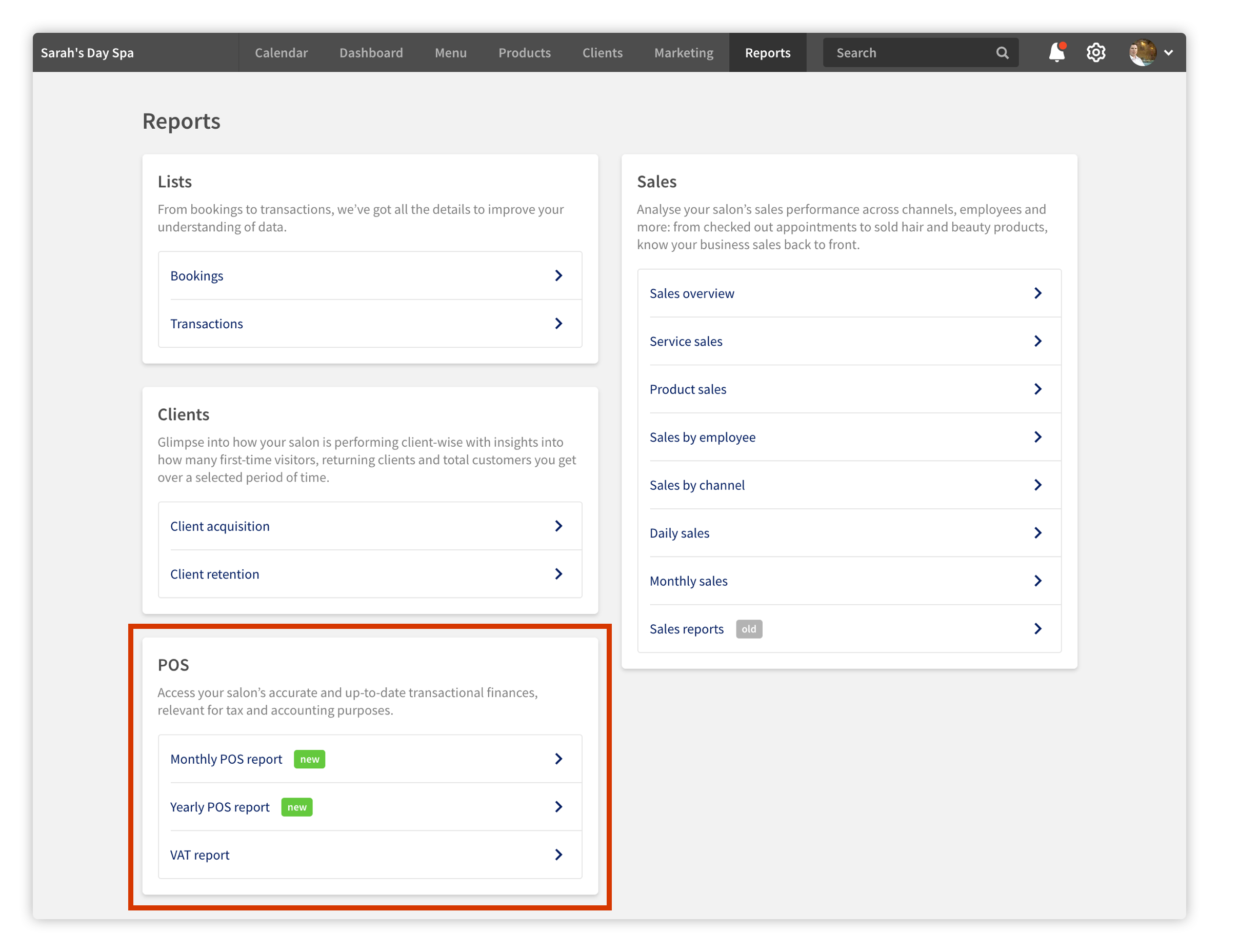
What types of POS reports are there?
There are two types:
Monthly POS reports
Yearly POS reports
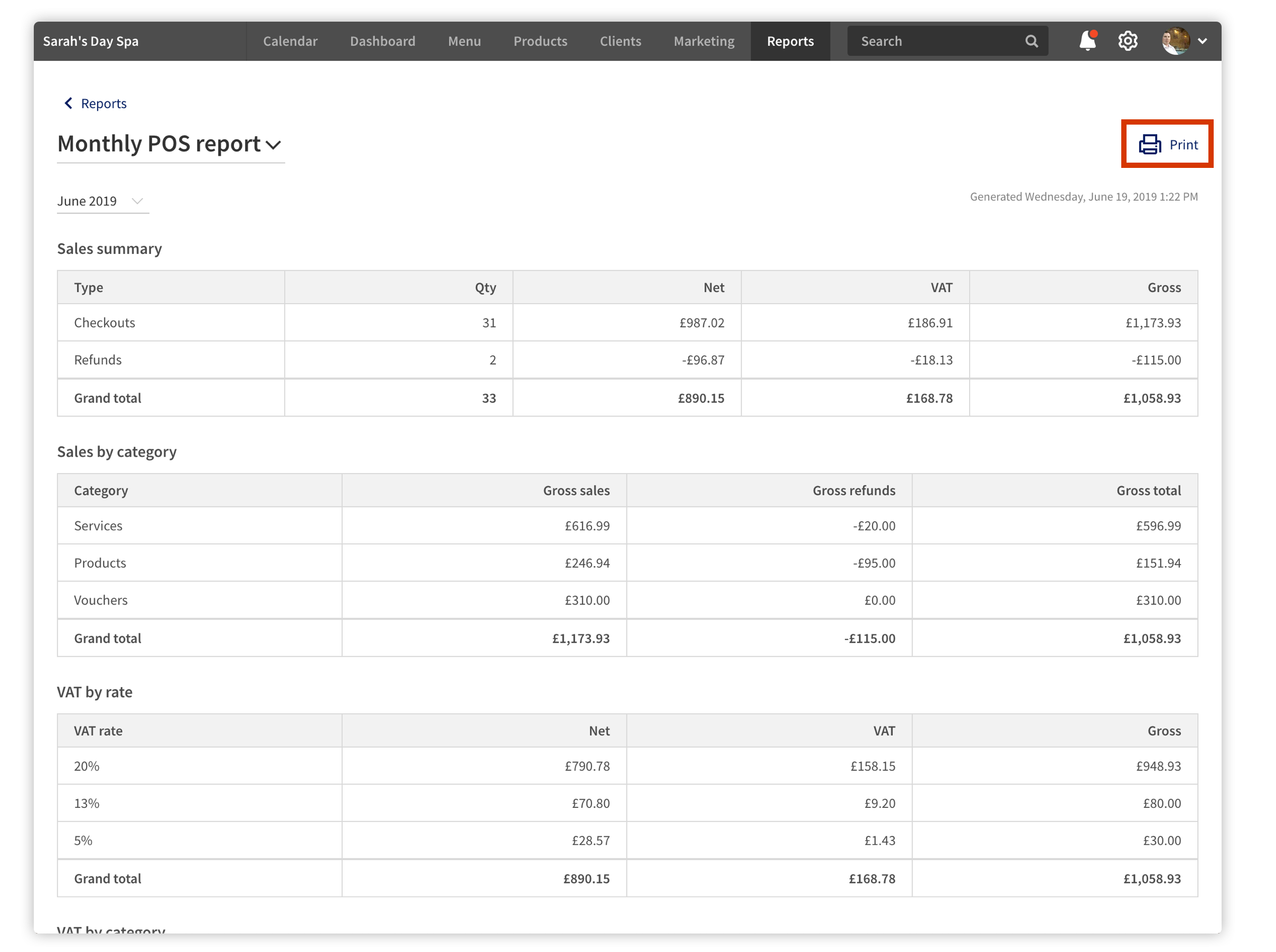
Both reports show the same information but differ in the report time frame.
Both show all relevant information about sales and refunds, revenue (segregated in service, products, and vouchers), VAT (per VAT rate and by category (so service, product, or voucher) and payment information for each payment method used.
What is a VAT report?
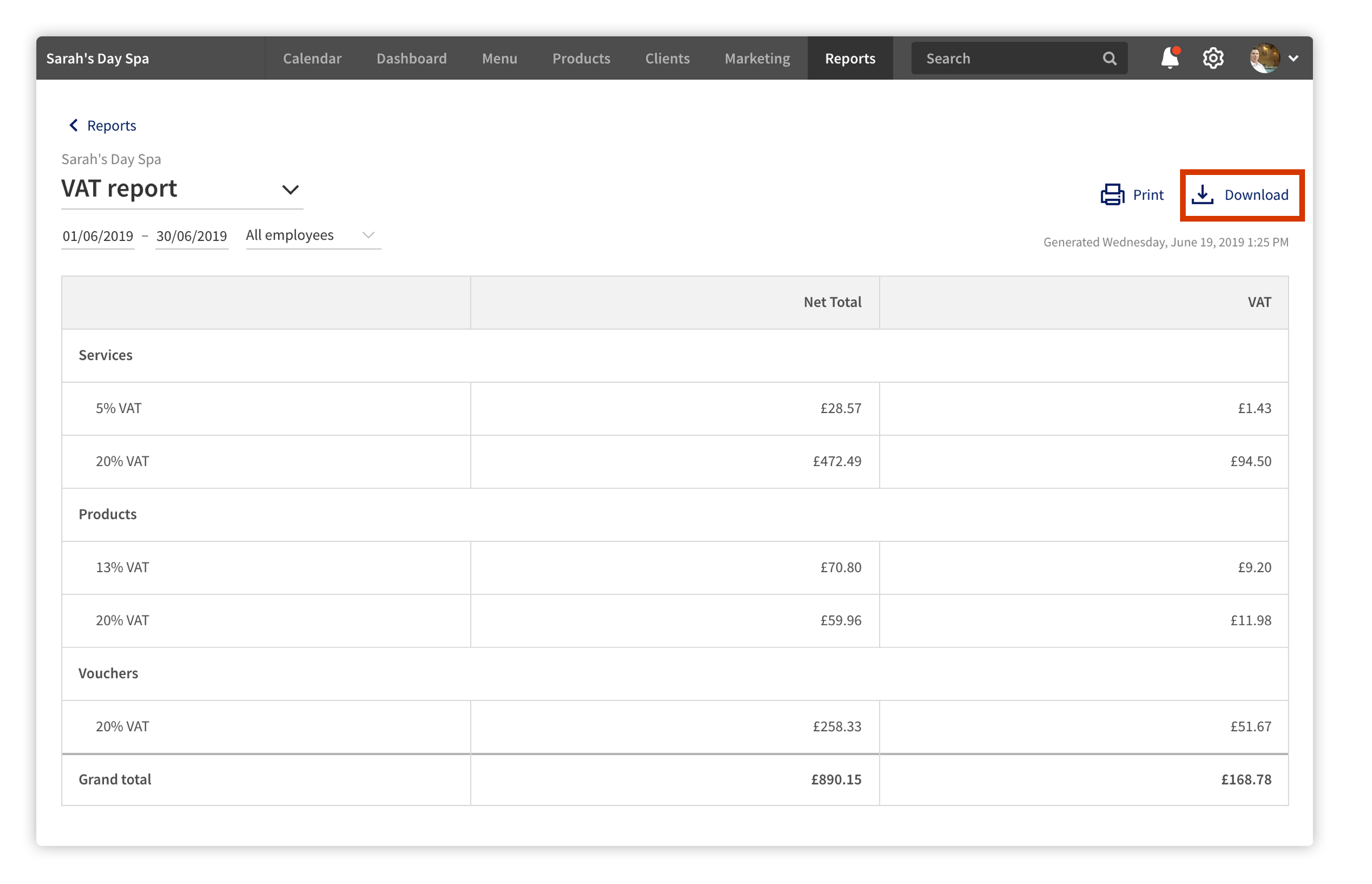
The VAT report illustrates VAT information segregated by category and per VAT rate used.
You can set end and start dates freely; the report can be pulled for all or for a particular employee and can be downloaded in CSV format:
Please note: In order to be generated, the VAT number has to be entered (Settings - Finance - Business Details).
What is read-only access for my POS transaction reports?
Treatwell POS allows authorised third parties (e.g., accountants) read-only access to the transaction report.
This account type has real-time access to the details of any transaction that has been carried out in the past and also to any previously created end-of-day reports.
Third-party users are also able to print receipt copies (e.g., end-of-day reports) - but cannot carry out any new transactions or see and use any other software function.
How can I create a 'read-only' access for my POS transaction reports?
In order to create such a Connect account, another email address is required - preferably the particular email address of the person that shall be granted read-only access.
First, choose ‘Settings’ and then ‘Team’.
Afterwards, click ‘add team member’ and enter a unique name (e.g., your account’s first and last name or just ‘accountant’).
Then enter the email address and activate ‘Can log in to Treatwell Connect’, choose the permission ‘Tax auditor access’, and finally click ‘Save’.
This triggers an automatic email to ‘Get started on Treatwell Connect’.
Check the inbox, open our email, and click ‘Create my profile’ in it. Then set the profile name and password to complete the account creation, and the user can log in.
How can I export the transaction report with the POS system?
In order to conveniently hand over all POS transaction information to your accountant or tax consultant, use the transaction export function:
Open ‘Transaction report’ and click ‘Export data’ there.
Then choose the type ‘Transactions (for accounting)’, define ‘start date’ and ‘end date’, and click ‘run export’.
This will create a CSV spreadsheet that contains all transaction information (such as type, items, payment amount & payment method, VAT, and cash in drawer) in chronological order.
What's the best type of computer to run the POS transaction report export?
We recommend using a computer to run the export, so better not to use the Connect App for this particular task. To open a CSV spreadsheet, you need additional software designed for that (e.g., LibreOffice or Microsoft Excel).
Import data sets & spreadsheets (Google Sheets)
Importing and Exporting CSV Files (LibreOffice)
Import or export text (.txt or .csv) files (Microsoft Excel)
The transaction data of the present business day won't be exported until the day-end closing has been carried out.
DATEV-Konverter 2.1.1 .xlsx
Please note: In order to be generated, the VAT number has to be entered (Settings - Finance - Business Details).
Was this article helpful?