
Sometimes, you may need different team members to have access to different types of information; that's why, for each team member added to Treatwell Connect, it is possible to manage and customise specific permissions.
How can I use the different team member accesses and permissions?
This functionality will allow you to decide which areas of the management software each individual team member has access to and, consequently, which changes they can make within Treatwell Connect (based on the type of work profile, for example, a stylist will have different access and authorisations than an accountant).
How can I edit team permissions?
You can edit permissions by logging into Connect as the owner or as a team member who can edit user permissions
Then click on 'Team', then 'Team' again
Click on the staff member's name
In the 'Access to Connect' section, you can assign or amend an access profile based on the type of collaborator
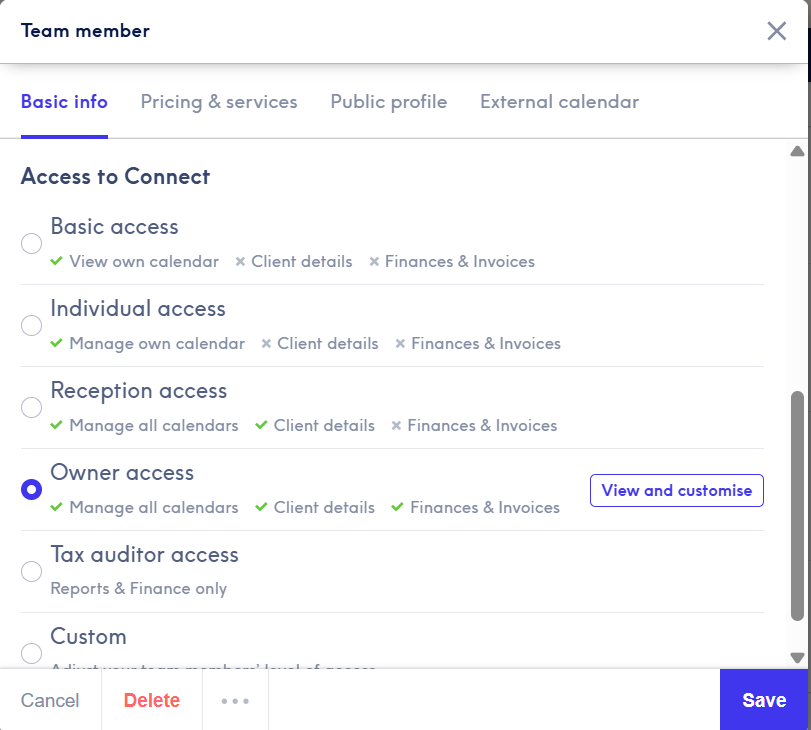
Each access already has pre-selected permissions, but all profiles can be customised by clicking on the 'View and customise' button.
What do the different permissions mean?
Here you can find a list of all the customisable options and their meaning:
General permissions:
View appointments: the staff member can view the appointment list in the Reports section: Reports > Bookings.
Manage salon details: from 'Settings' (or the settings icon), the user can edit the salon details. Here the user has access to change their address, contact details, opening hours, cancellation policies, notifications, and online booking settings.
View invoice details: from Settings, the user can access the 'Finance' tab. This user can view the list of payments you have received from Treatwell and change your billing information and bank details. You can also see the commission rate applied to the booking.
View sales reports: The user can view sales reports in the 'Reports' area.
Authorise refunds: the user can refund already paid appointments, products, or vouchers sold. It can also restore appointments to 'unchecked out'. Please note this is only in the checkout system. To action a refund, a user must have permission to delete appointments/manage the calendar.
Authorise price list modification at checkout: the user can update the service prices (e.g., apply discounts) at checkout.
Manage POS: manage checkouts and POS functionalities if you have this enabled
Menu permissions:
View menu: the user can view the salon menu, but cannot make changes
Edit menu: the user can edit the details of an offer and the price list, and apply discounts.
Customers and marketing permissions:
View the customer list: the user has access to the 'Clients' area and can view the complete list, including booking history. Email addresses and phone numbers will be obscured and not shown on the customer card, appointment details, or in the quick search section. With this permission, the user is not able to edit customer details.
View/edit customer details: the user can see and change customer details (including email address and phone number). The user can also block customers when needed to keep everything running smoothly.
Access marketing tools: the user can access the 'Marketing' area and create campaigns.
Calendar permissions:
View your calendar (selected by default): the user can view the calendar, but not make any modifications
Manage own calendar: the user can create, reschedule, or cancel an appointment on their calendar. If the same user does not have permission to 'see/edit customer details', they will not be able to see or amend the customer details. You must also have this permission active to access the portfolio feature on the Connect app.
View others' calendars: the user can view other team members' calendars, but cannot make changes. Activating this function also allows the staff member to receive notifications relating to other calendars.
Manage others' calendars: the user can add, edit, or delete an appointment on behalf of other team members.
Permission to delete appointments: the user can delete an appointment from the calendar. Without specific calendar permission, the user can only see calendar appointments and not customer details.
Team permissions:
Add team members: the user can add a new member to the team.
Change user permissions: the user can change the access permissions of other team members.
Which team members and permissions have the ability to interact with reviews?
The ability to view and interact with reviews is not a customisable option like the other options. To manage customer ratings, Connect already provides the following default settings:
All staff members, with the exception of those with the role of 'Tax auditor', have permission to view and respond to reviews on the marketplace.
All team members can share reviews on social media, but each employee can only share ratings for the services they personally performed.
Was this article helpful?