
We know it can be frustrating if a customer doesn't show up without notifying you, especially if it's a pay-at-venue booking. That's why we've created various tools to help you manage and avoid negative repercussions from no shows. Here's more info in this article.
What should I do if a customer hasn't arrived for an appointment?
We have created various features to help you protect your business against customers not turning up. Here's what you can do:
Use the 'no show' button
Requiring a customer to prepay for future bookings
Cancellation Protection - more information on this feature here.
What does the 'no show' button do, and how can it help me?
The no-show status alerts us that the customer did not attend, meaning you won't be charged commission for 'pay at venue' bookings
For pre-paid bookings, a usual commission rate is charged since you still receive payment for the booking.
Once you've marked the appointment as a no-show within the same day, we'll notify the customer that the appointment didn't go ahead as planned and adjust the booking in the system.
The customer won't be able to leave a review for any bookings marked as 'no show'.
How can I use the 'no show' button?
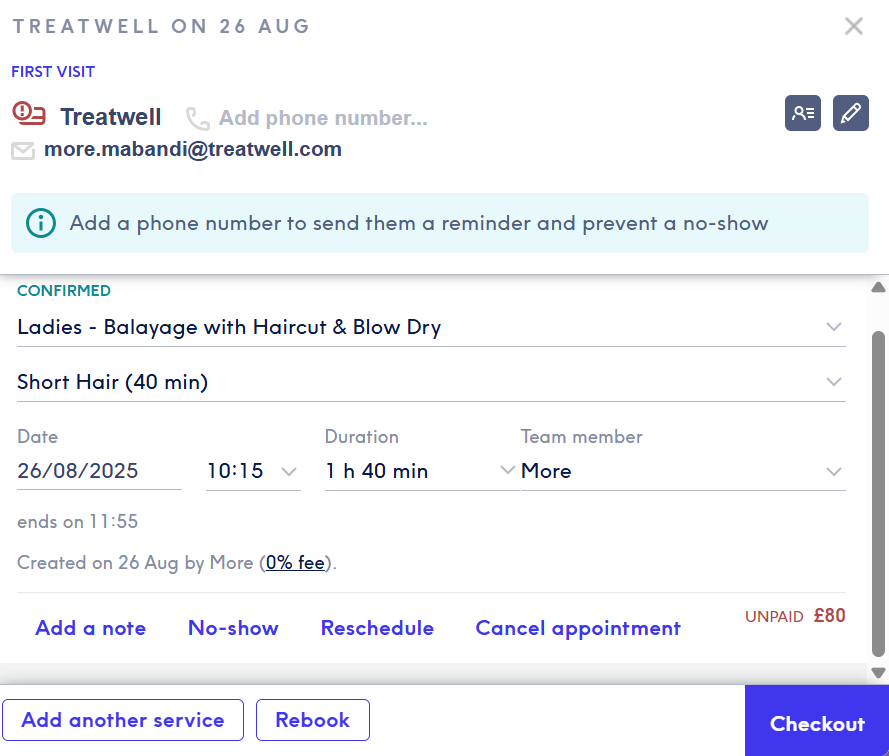
Find their booking on the Calendar in Treatwell Connect, then click to open it.
A pop-up will then appear. Click on the ‘No show’ button towards the bottom, next to ‘Reschedule’.
Review the information about what will happen next (this can depend on if you have Cancellation Protection), and click ‘Mark as no show’.
Remember, you will need to mark a customer as a no-show on the same day as the booking.
In case you need more information on Cancellation Protection, take a look here.
In case you want to protect yourself further, you can also mark this customer to prepay only. Find out more details below.
Why can't I mark a customer as a 'no show'?
You must mark the appointment as a no-show within the same day as the scheduled appointment time.
If you do not mark it within this timeframe, you will not be able to make any changes after the working day has passed.
How can I mark a customer to prepay only?
There are two ways to mark a customer as requiring pre-payment:
You can mark them as ‘require to prepay’ when you mark their appointment as a no-show on your calendar.
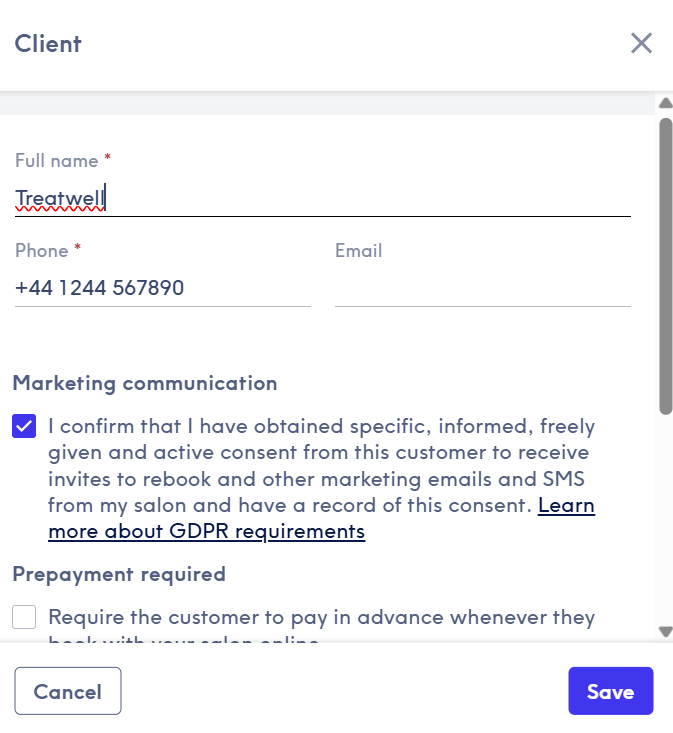
Go to your ‘clients’ tab on Connect and find the customer. Click on ‘edit details’ and tick the box that requires them to prepay next time they book online - you can switch this off whenever you like. You'll see the below indicating icon below whenever you see their details.
What do I need to know when marking a customer to prepay only?
As a way to prevent future no-shows, Connect’s ‘require to prepay’ option means you can force a customer to prepay the next time that they book you online.
This applies to all bookings powered by Treatwell, meaning you’re protected with an advance payment from customers who might not show up.
Please note you must keep your client details up to date for this functionality to work (remember customers can still make 'pay at venue' appointments if they use different contact details)
We won’t tell the customer the reason they are required to prepay; we’ll simply only show them the 'Pay online' option next time they book online.
Remember that limiting the payment choice can also mean a customer might not book you again. So once the customer has had a successful appointment, you can easily disable the feature from your client list.
Can I block a customer from booking with me?
Our products and services are designed in a way to best support both our partners and our customers, but we do understand that on occasion, you might have a negative experience with a customer who has booked through Treatwell.
We’re not able to ban a customer from Treatwell for a one-time offence, but reach out to us via chat if you think that their behaviour breaches our terms and conditions. We’ll make a note on their account and keep an eye out in case it happens again.
On your side, you may want to reach out to the customer to let them know that you're not happy to provide further treatments to them and leave a note on their client card in Connect.
Was this article helpful?