
We all know that discounts help attract more customers, that's why in Treatwell Connect we offer various different options of discounts to suit your salon's needs.
Want to fill up that last minute cancellation, or simply looking to apply discounts on your slower days? Take a look at this article to see what different discounts you can add and how.
How can smart discounts bring me more customers?
Offering lower prices to attract new customers or keep existing ones coming back isn’t a new idea. Airlines, hotels, and restaurants have been using 'dynamic pricing' for years - adjusting prices depending on demand, supply, time of day, or day of the week.
For salons, it works too. In fact, salons that use smart discounts see on average 40% more bookings than those who don’t - making it a winning strategy to increase bookings and maximise revenue.
With Treatwell Connect, you can easily create and apply smart discounts to your services, adjusting your price list based on your availability (e.g. certain time slots or days of the week).
Why should I use smart discounts in my salon?
Smart discounts let you fill quieter times and spread out your bookings, rather than having everything concentrated at peak hours. This not only boosts revenue but also helps your team work more efficiently.
By tailoring your prices with discounts, you can:
Attract new clients who may not have booked otherwise.
Retain existing customers with appealing offers.
Fill quieter periods in your calendar while avoiding peak-time overload.
Maximise profits by distributing appointments more evenly throughout the day.
What are the different discount options that I can apply to my services?
Treatwell Connect offers various discount options to suit your needs. You can choose from the below:
Last Minute discounts – with this type of discount, you can choose the percentage off you would like to apply, and the booking timeframe that will be applied before the appointment can start. These are great to use when you have gaps between appointments that you'd like to fill up!
Off-peak discounts – with this type of discount, you can create a repeated discount that you can offer on slower days, or at specific times you find you receive less bookings. Here you just need to choose the percentage off you'd like to apply as well as the days and times you would like to offer it.
Sale prices – with this option, you can choose to apply a specific sale price (instead of % off) for a specific service. This sale price will be applied for all appointment times/days until you remove it from the service.
How can I create Last Minute or Off Peak discounts?
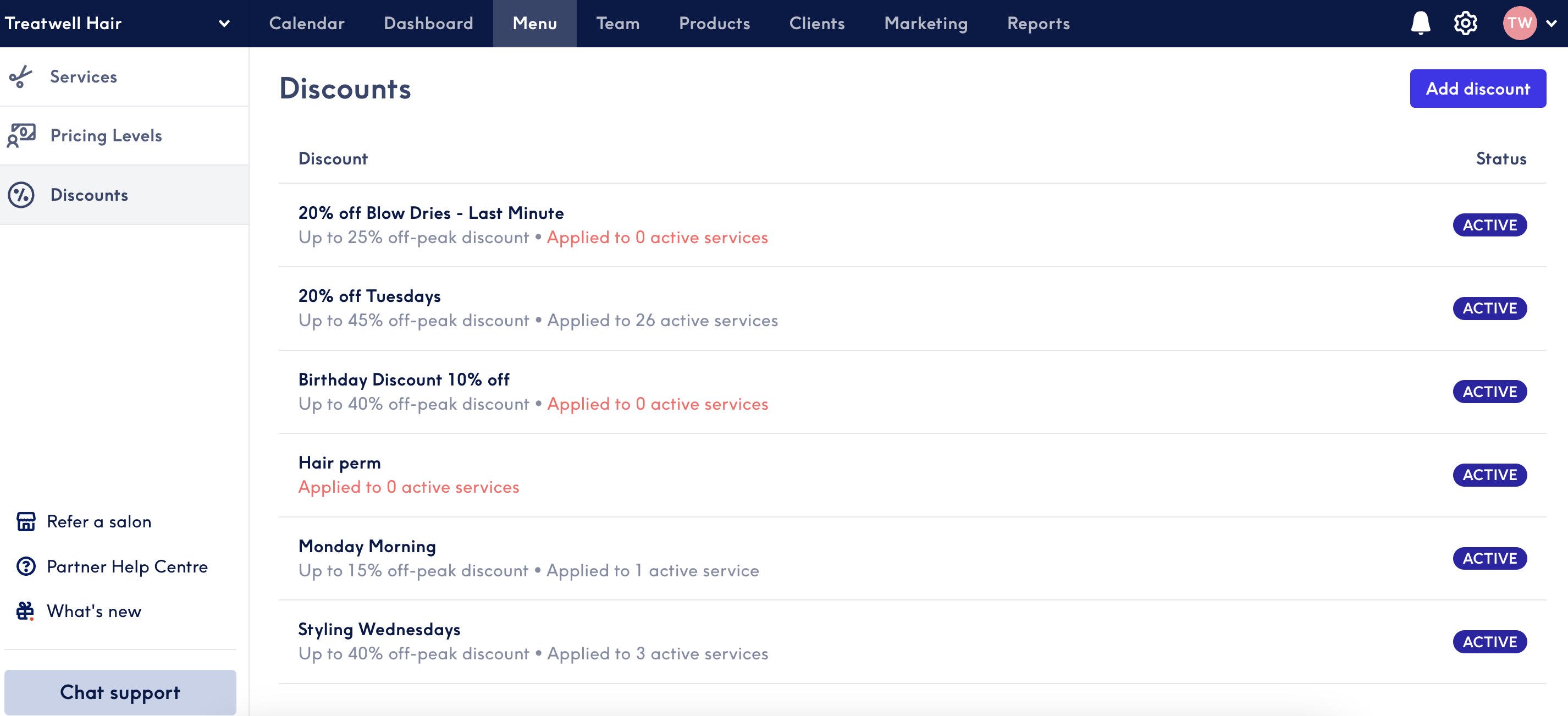
Go to 'Menu' in Connect and select 'Discounts' on the left-hand side.
Click on 'Add discount' at the top of the page and a pop-up will appear.
You can also create a new discount directly from a service by selecting the option 'No discount' and then '+ Create new discount', which will take you to the same pop-up.
Enter the name of the discount you wish to create and select the type of discount you prefer to use.
⚠️ Please note: you can only create Last Minute and Off Peak discounts here. For more info on how to create a Sale Price, take a look here.
For Last Minute Discounts: When the preferred option is ticked, you’ll be asked to select the percentage of the discount you want to apply and the booking time-frame this is applied to before an appointment starts. Remember, the hours you apply for the booking time frame will apply to business hours, so if you apply a 4-hour booking time frame, and your salon is closed 4 hours before the appointment time, the 4-hour booking time frame will apply to the salon's opening hours the day before.
The timeframes on the last-minute discounts are based on the venue's working hours, not actual hours.
For Off Peak Discounts: A table will appear with the days you are open, split into morning, afternoon, and evening. Select the day and time of day you wish to apply a discount to, as well as the percentage you wish to discount by. We've set default times for morning, afternoon and evening, but you can easily change the time slots by going to 'Settings' > 'Online booking'.
You can then either save your discount (however, by doing this no services will be applied yet), or you can choose to apply the services you need.
Find more information in the video below:
How do I apply the Last Minute or Off Peak discount I've created to my services?
After creating your discount, you'll need to decide which services to apply the discount to.
If you have saved your discount without applying the services, just click on the discount in the 'Menu' > 'Discounts' section.
If you haven't left the pop-up, at the top of the pop-up box, click on the tab 'Assigned services'.
Check the box next to each service that you want to add to this discount.
Click 'Save'.
How can I create a Sale Price?
Sale prices are a little different to Off Peak and Last Minute discounts – instead of being a % off and applied within a specific timeframe, they are a fixed price, applied for all booking times and days in the calendar for that specific service.
You can easily add and remove Sale Prices by just going to your 'Menu'. In the 'Services' section you just need to click on the service where you would like to add a sale price, add a 'Sale Price' and click 'Save'.

This will then be applied to all upcoming bookings for that service until you remove it.
To remove the Sale Price, just click on the service again, remove the sale price, then click 'Save'. It's that easy!
How do I set up a discount for one team member?
You can do this by adding pricing levels to your service, then applying the discount.
To add pricing levels take a look at this article here.
After setting up your pricing levels, go to your Menu and click on the service you want to add a discount to.
Next to the duration of the service, add a sale price next to whichever pricing level will be discounted. Click “Save”.
Remember, if you have more than one team member in each of your pricing levels, both team members would be bookable with the discount.
It’s important to remember that adding discounts this way will mean customers can book at these prices on any day, at any time. If that’s not what you’re looking for, Last Minute or Off Peak discounts give you even more control of your pricing.
How do I deactivate a discount?
If one of your discounts is out of season or you have changed your mind and want to deactivate it, you can do so directly on Connect.
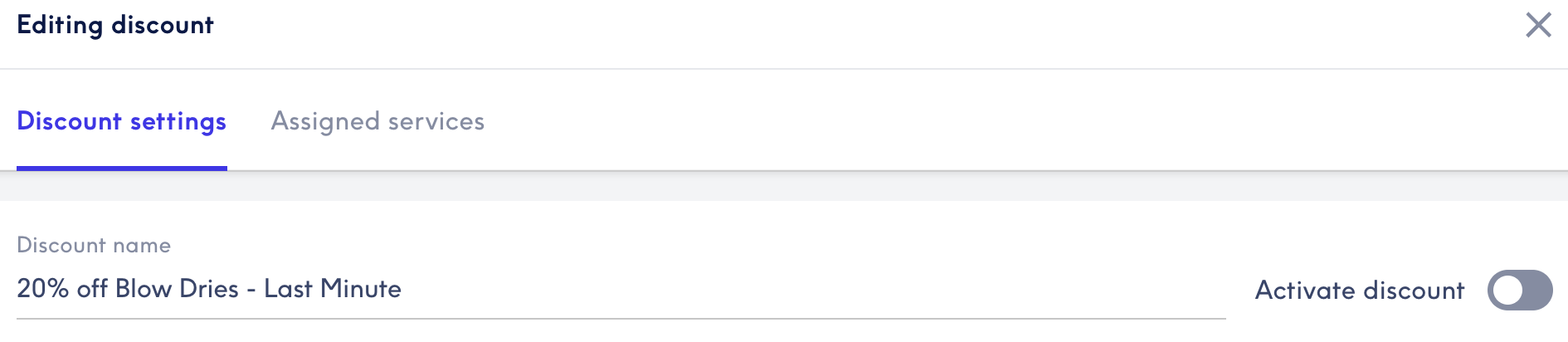
To deactivate a Last Minute or Off Peak discount:
Click on 'Menu' at the top of the page.
On the left of the page, click on 'Discounts' (you will see the list of discounts you offer and their current status).
Click on the discount you want to deactivate.
On the right of the tab, click on the 'Activate discount' toggle – the color will change from purple to grey.
Click Save.
Returning to the main discounts page, you will see that the discount is now Disabled.
This process will remove the discount from all services to which it was applied.
⚠️ Remember: reservations that have already been made with the discounted rate will not be modified.
What else do I need to know about discounts?
If multiple discounts are applied to the same service at one time, Treatwell Connect will automatically apply the discount with the lowest price.
Our recommendation? Set a discount of at least 20% to get yourself noticed on the site.
Was this article helpful?