
We know how time-consuming it can be spending time sending updates and messages to customers – and that time is a precious resource if you’re running a hair and beauty business. This is why you can find the Automated messaging section in Treatwell Connect – a handy set of features, designed to help you win back your time through automating your client communications.
What is Automated messaging?
Automated messaging is a set of features we've built to automatically send well-timed professional emails and messages to all your clients (whether they booked online or offline).
How does Automated messaging work?
Automated messaging uses smart, built-in algorithms to automatically send your clients all the emails and messages it takes to create a professional salon experience.
From booking confirmations to invitations to rebook, Treatwell Connect sends these communications to your clients at the right time, without you having to plan and send them yourself. Most importantly, this frees up more time for you to focus on what you do best – delivering the perfect in-salon experience.
All you need to do is enter client details in Treatwell Connect and make sure each feature is enabled in the Automated messaging tab. Treatwell Connect will do the rest! Find out below how you can activate this feature.
What emails and messages can we automate for you?
An email to confirm a booking or any changes you’ve made to a booking (like rescheduling or cancellation).
A reminder about their upcoming appointment, sent by email, text, or push notification.
A review request, sent to them by email after their appointment.
An email or SMS (if you have credits) reminder to rebook the same appointment with you, when the time is right.
How can I activate or deactivate automated messaging?
If you would like to activate any of our automated messaging features, just follow the steps below:
Head to Treatwell Connect on the desktop version and click on the option 'Marketing', landing on 'Automated Messaging'
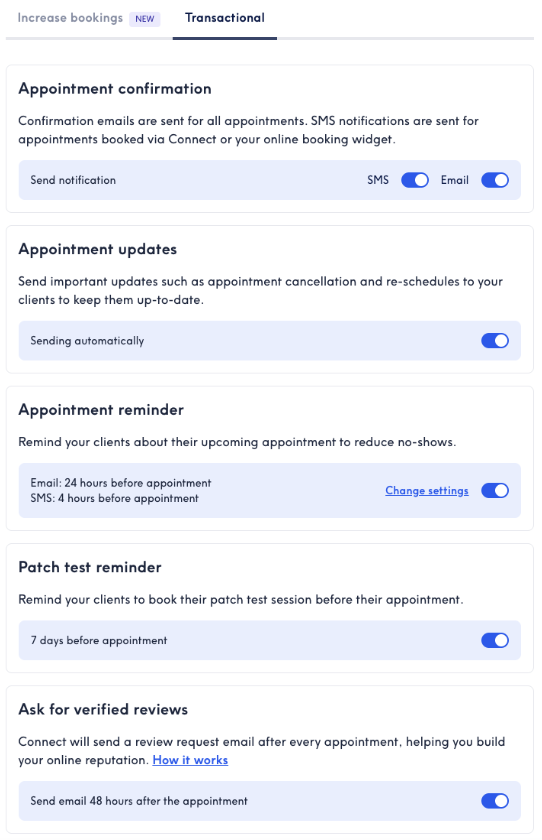
Here, you can choose between 'Increase Bookings' and 'Transactional' depending on which option you're looking to activate.
Here, you can choose between 'Marketing' and 'Transactional' depending on which option you're looking to activate.
Once you've decided which automated messaging you would like to activate or deactivate, just click on the toggle
The toggle will be blue when the automated messaging is activated, and it will turn grey when reactivated.
How does automated messaging work in practice?
Keep clients up to date' option: When a client books an appointment with you directly (and you add it to Connect), they get a booking confirmation email with all the details in one place.
'Send helpful appointment reminders' option: The day before their visit, they get a booking reminder (making them less likely to forget, and more likely to turn up).
'Ask for verified reviews' option: A couple of days after their visit, they're sent a review request, helping you collect more verified reviews and build your reputation.
'Rebook reminder' option: When it's time to book again, they receive an email and also an SMS if you have credits – making them more likely to come back.
All these messages are sent in your salon's name, so clients can see that you're going the extra mile to create a professional salon experience for them.
Was this article helpful?