
Building strong relationships with your clients is at the heart of running a successful salon or business. And keeping all their details in one place makes it easier than ever to stay connected, encourage repeat visits and give every client a great experience. That's where Treatwell Connect comes in!
Don't worry if you're not sure where to start, we'll walk you through everything you need to know, step by step!
Why do I need to add my client details to Treatwell Connect?
Adding all your clients to Treatwell Connect means you can make the most of its features and give your customers an even better experience.
Keep clients in the loop: With automatic appointment confirmations and reminders, your clients always know when their next appointment is. You can also send them invitations to rebook, helping you keep your calendar full. Find out how to activate these features here.
Build your reputation: You can send review requests to your direct customers through Treatwell Connect, making it easier to collect great reviews from your loyal clients and attract new customers. Find out how here.
Save on commission: We know every penny counts when you're running a business! By adding your direct clients' contact details, including their email address and phone number, to Treatwell Connect, you won't be charged commission if they later decide to book through the Treatwell Marketplace.
How can I upload my full client list to Treatwell Connect?
You can upload your full client list in just a few steps:
Log in to Treatwell Connect on your desktop.
Go to ‘Clients’.
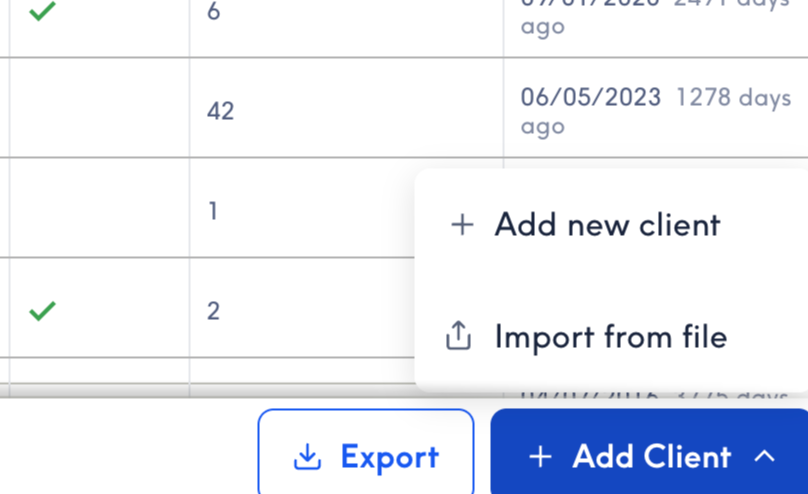
Click ‘Add client’, then ‘Import from file’ in the lower right corner.
Choose how you'd like to import:
Use a template – download it, add your clients' details, then upload the completed file back.
Upload your own client list – send us your file in any format and we'll set it up for you.
If you use our template, follow the instructions to fill it in and upload the completed file as an XLS, XLSX or CSV file.
If you want to upload your own client list, simply drop your file in any format.
Click ‘Import’.
If you uploaded your own file, a member of our team will format and upload it for you within 3 working days. You'll receive an email when your client list is ready.
How do I fill in the client list template?
Open the template in Excel, Google Sheets, or any spreadsheet software. Fill in as much information as you can - the more details you add, the more personalised your client communications will be.
Here’s what each column means:
A - Full name or
B + C - First name and Last name
D - Phone number (mandatory if no email)
E - Email address (mandatory if no phone number)
F - Notes (e.g., past treatments, allergies, preferences)
G - Marketing consent (whether the client agrees to receive marketing messages)
H - Gender
I - Language (so we can send communication in the right language)
J - Full date of birth or
K + M - Birth month and Day of month
Remember: either a phone number or an email is required. Once you’ve filled in the template, save it as an XLSX, CSV or XLS file and upload it back into Treatwell Connect.
What does Treatwell Connect do with my client list once I upload it?
Once uploaded, Treatwell Connect gets to work for you:
Your clients will receive booking confirmations and updates automatically.
Rebook reminders can be sent, encouraging more repeat business.
You can create and send marketing campaigns directly to your client list.
You decide what your clients should receive and when - Treatwell Connect does the rest.
What should I do if something goes wrong when uploading the client list?
If you run into any issues, don’t worry. Just reach out via chat in your Treatwell Connect calendar, and our team will support you.
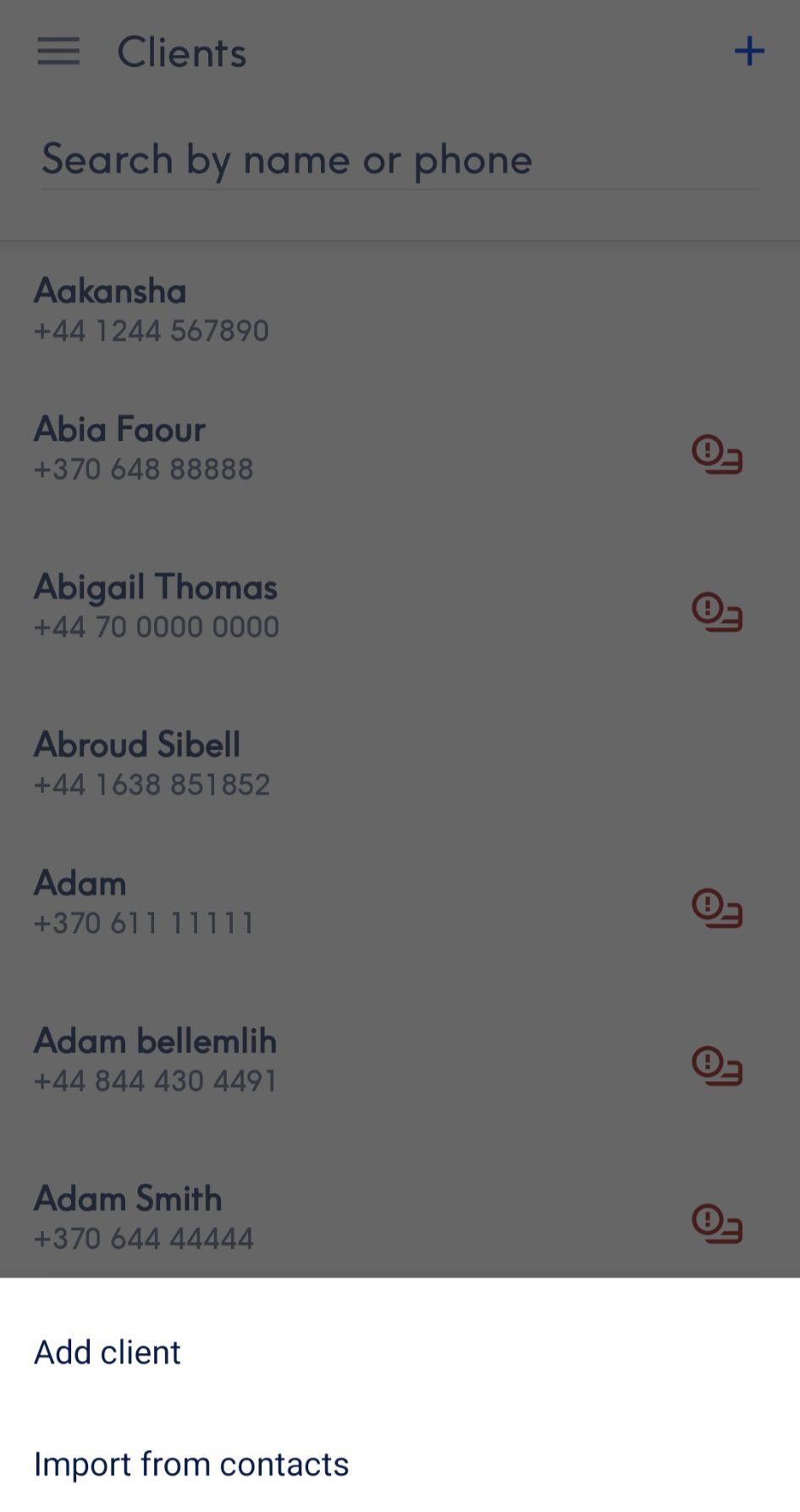
How can I import contacts from my phone contact list?
Log in to Treatwell Connect from your app.
Click the menu icon (three horizontal lines) in the top-left corner.
Go to ‘Clients’
Click on the plus sign on the top right
Choose ‘Import from contacts’
How can I add clients to Treatwell Connect manually?
If you'd prefer to add clients individually, you can also create new client profiles manually in Treatwell Connect, one at a time.
From the App:
Log in to Treatwell Connect from your app.
Click the menu icon (three horizontal lines) in the top-left corner.
Go to ‘Clients’
Click on the plus sign in the top-right corner
Choose ‘Add client’
From your desktop:
Log in to Treatwell Connect on your desktop.
Go to ‘Clients’.
Click ‘Add client’, then ‘Add new client’.
Add the client information
Click ‘save’
Was this article helpful?