
The Treatwell POS system makes it easy to manage transactions, track sales, and keep your cash drawer in order. A key feature here is the POS quicklist, a shortcut menu you can open from the calendar view.
The quicklist is an in-app function that gives you direct access to the most used POS actions, such as selling products, selling vouchers, recording cash deposits/withdrawals, or closing the business day.
Where can I find the POS Quicklist?
At the top-left corner of your calendar view, you’ll see a small till symbol labelled 'Sales'. Clicking this opens the POS Quicklist, where you’ll find the most-used POS functions.
How do I sell products and salon vouchers via the Quicklist?
Use this function when clients come without an appointment but want to buy products, salon vouchers, or gift cards.
This process is almost the same as checking out a service, except that no services are shown in the window.
How do I record cash deposits and withdrawals correctly with the POS system?
Whenever you put money into the till or take money out without it being part of a checkout or refund, you must record it properly.
Cash withdrawal: Record when you remove cash (e.g. to take to the bank).
Cash deposit: Record when you add cash (e.g. to provide change for the till).
To record them:
Open the POS quicklist by clicking the 'Sales' button on the top-left corner.
Select Cash deposit or Cash withdrawal.
Enter the amount and add a clear note (e.g., “added float for till” or “bank transfer”).
⚠️ Important: Do not use cash deposits/withdrawals for checkouts or refunds.
For bookkeeping or tax-related labelling rules, please check with your accountant or tax advisor.
What does it mean to open and close a business day with the POS system?
Treatwell POS is structured around business days, which need to be opened and closed properly.
Opening a business day happens automatically with your first POS transaction (checkout, refund, cash deposit, or withdrawal). If no POS transactions happen, the day isn’t opened. So days without any POS transactions, typically those when your salon is closed, will never be opened in the first place.
Closing a business day is your confirmation that everything POS-related is complete and all appointments have been checked out for the day. Once closed, the day is locked. POS transactions will only reopen with the first transaction of the next day.
⚠️ If your entered cash amount doesn’t match the expected cash, Treatwell POS will log your entry and create an automatic cash drawer adjustment.
How do I close the business day using the POS Quicklist?
Every business day that’s opened must eventually be closed. Closing the day should be your final task before leaving.
Steps to close the day:
Make sure all today’s appointments are checked out (purple = checked out, blue = not yet).
Open the POS Quicklist and click Close day.
Click Open cash drawer and count the cash inside.
Enter the amount to carry forward as your next day’s opening balance.
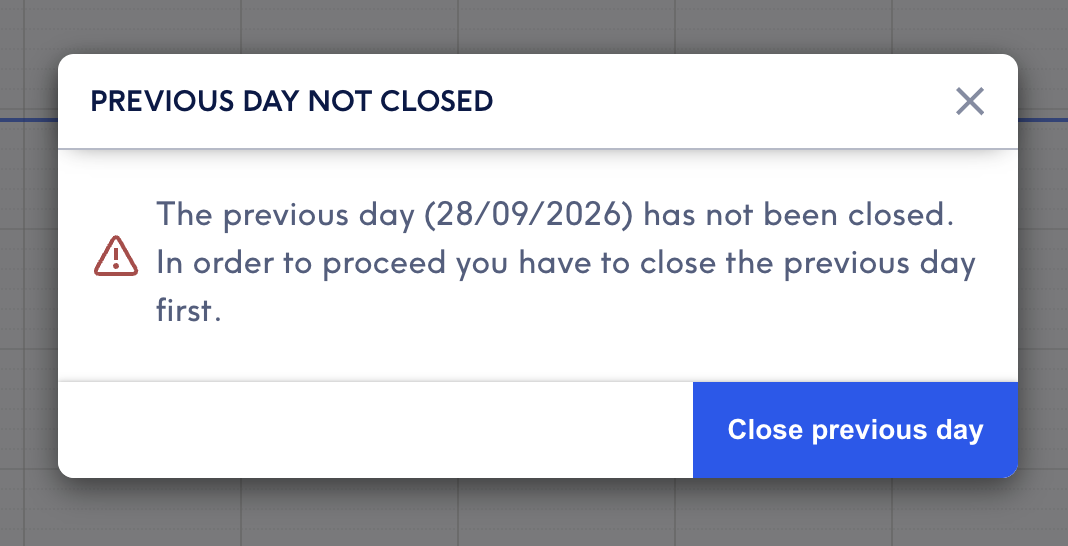
To close a previous day, navigate back to that date on your calendar, complete any remaining checkouts, and click Close day in the POS Quicklist.
If you want to start the next day with a different balance, register a cash withdrawal or deposit before closing.
Once closed, you’ll receive the End of Day Report.
How can I view the Transaction report?
The Transaction report lists every transaction and receipt recorded in Treatwell POS.
Access it via Reports or the POS Quicklist.
Switch between days using arrows.
Choose between a basic or advanced view for more detail.
You’ll see a chronological breakdown of all sales, refunds, deposits, and withdrawals.
Was this article helpful?