
Accurate client details, especially for allergies and medical history, are essential for safe, high-quality treatments. Customisable consultation forms make collecting and managing this information effortless. With consultation forms, you’ll have everything you need in one place before a client ever steps through your door.
What are consultation forms?
Consultation forms are customisable, signed documents providing client information before their appointments. They can be used for any treatments on your menu that require informed consent.
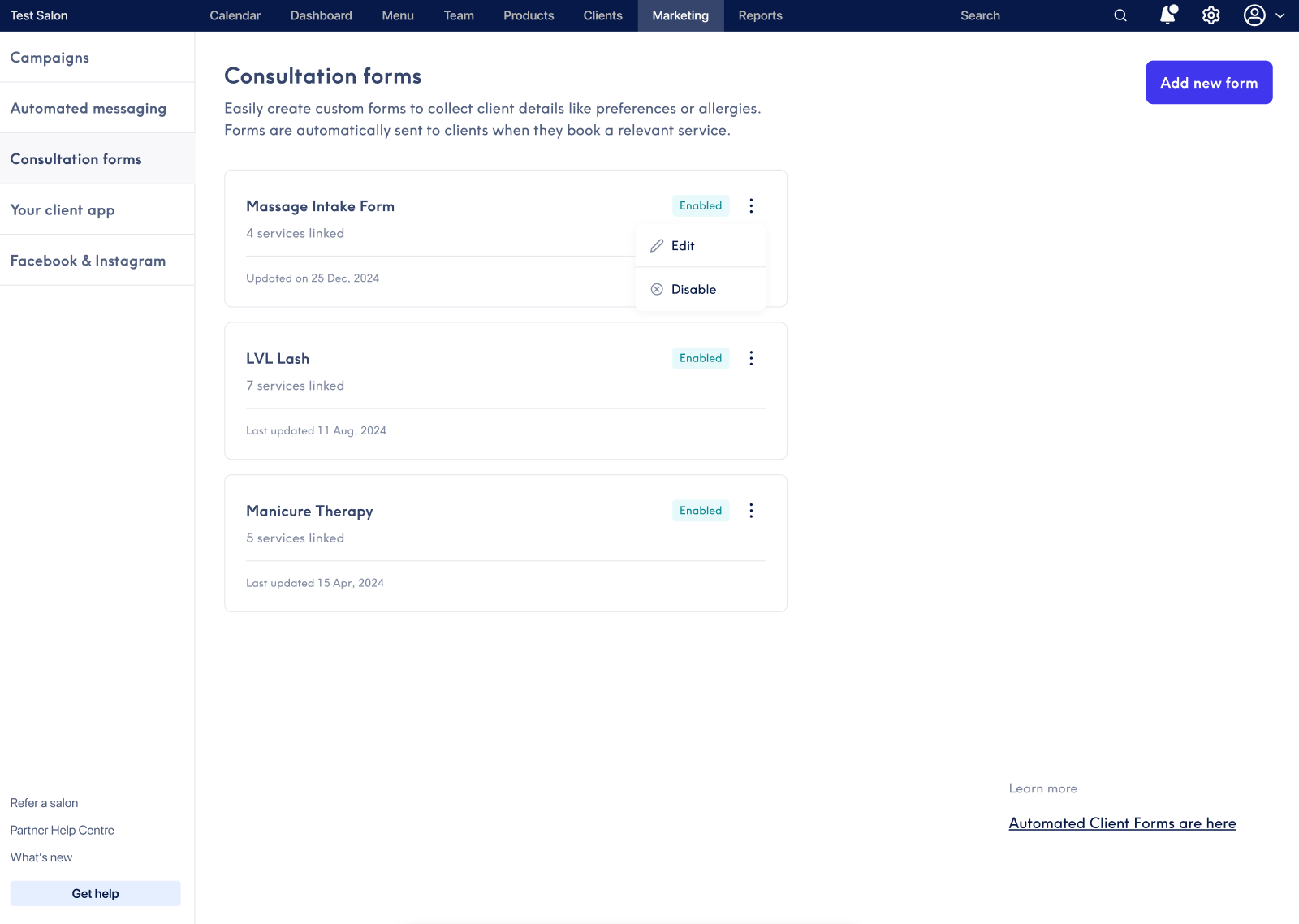
With consultation forms, you can collect client information ahead of time to understand their needs before they arrive.
These forms allow you to:
Outline pre/post treatment details ready for your client to review and sign.
Outline any procedures and precautions that clients can consent to before their appointment.
Receive any information you need from clients ahead of the treatment, like allergies.
Have all of the above details all in one place, in one signed consultation form.
How can I create a consultation form?
Remember: You will need to set up your forms on a desktop or tablet view of Treatwell Connect (currently not available on the mobile app).
Go to ‘Marketing’ in the top menu bar, then select ‘Consultation forms’ on the left.
Click ‘Add’ a new form.
Enter a form title (remember, the title will be visible to your clients).
Click to select a question type, create your question, and set up your answer choices.
Click ‘Connect services’ to select which menu items require this form.
Next, click ‘Review form’ to check your work, then ‘Save’.
Here you can ‘Choose to Enable’ and start sending immediately, or ‘Save for Later’.
What options do I have for the question types and answers in the consultation form?
Personal info: Collect basic details like name, contact info, date of birth, and address.
Yes/No question: Write your question, and we’ll automatically add Yes/No options.
Single answer: List multiple options, and clients can select one.
Multiple answers: List multiple options, and clients can select all that apply.
Tip: Always include a "None of the above" option for single and multiple-choice questions.Description: Share important details, like treatment info or pre / post-care instructions.
Open question: Allow clients to write their own response.
How can I delete my consultation forms?
To delete a consultation form, just click on the three dots on the right of the specific form, and click to delete.
How will clients receive the consultation form?
When a client books a service that requires a consultation form, either online or in person, we’ll automatically email them the form to complete before they arrive. Just make sure you’ve added their email address to the booking, so we can send it over.
In case a booking has been rescheduled, the form status will reset to ‘Pending’. In this case, the customer will receive a new rescheduled booking confirmation email with an updated link to submit their form.
How can I edit a consultation form?
Go to ‘Marketing’ then ‘Consultation forms’.
Click the three dots (⋮) next to the form you want to update.
Select ‘Edit’ to modify questions or connected services.
You’ll see a pop-up asking you to temporarily disable the form while you edit it. Select ‘Confirm’. The form won’t be sent to clients who book during this time.
How can I enable or disable consultation forms?
Go to ‘Marketing’ then ‘Consultation forms’.
Click the three dots (⋮) next to the form.
Select ‘Enable’ or ‘Disable’ and confirm your choice.
Was this article helpful?