
Has a client told you they haven’t received their booking confirmation? No need to guess or contact support! With Message history, you can check the emails sent to your clients and resend them directly from Treatwell Connect.
It’s a quick and easy way to keep your clients informed and help them manage their appointments with confidence.
What is Message history?
Message history lets you view booking confirmation and appointment reminder emails you sent to your clients.
If a client says they haven’t received their confirmation or reminder, you can check the email status and resend the email if needed, all from the same place.
How can I find Message history?
You can access Message history on the web version of Treatwell Connect and on your iOS or Android app.
How to view Message history from the Treatwell Connect web version:
Log in to Treatwell Connect.
Go to Marketing in the menu.
Select Message history
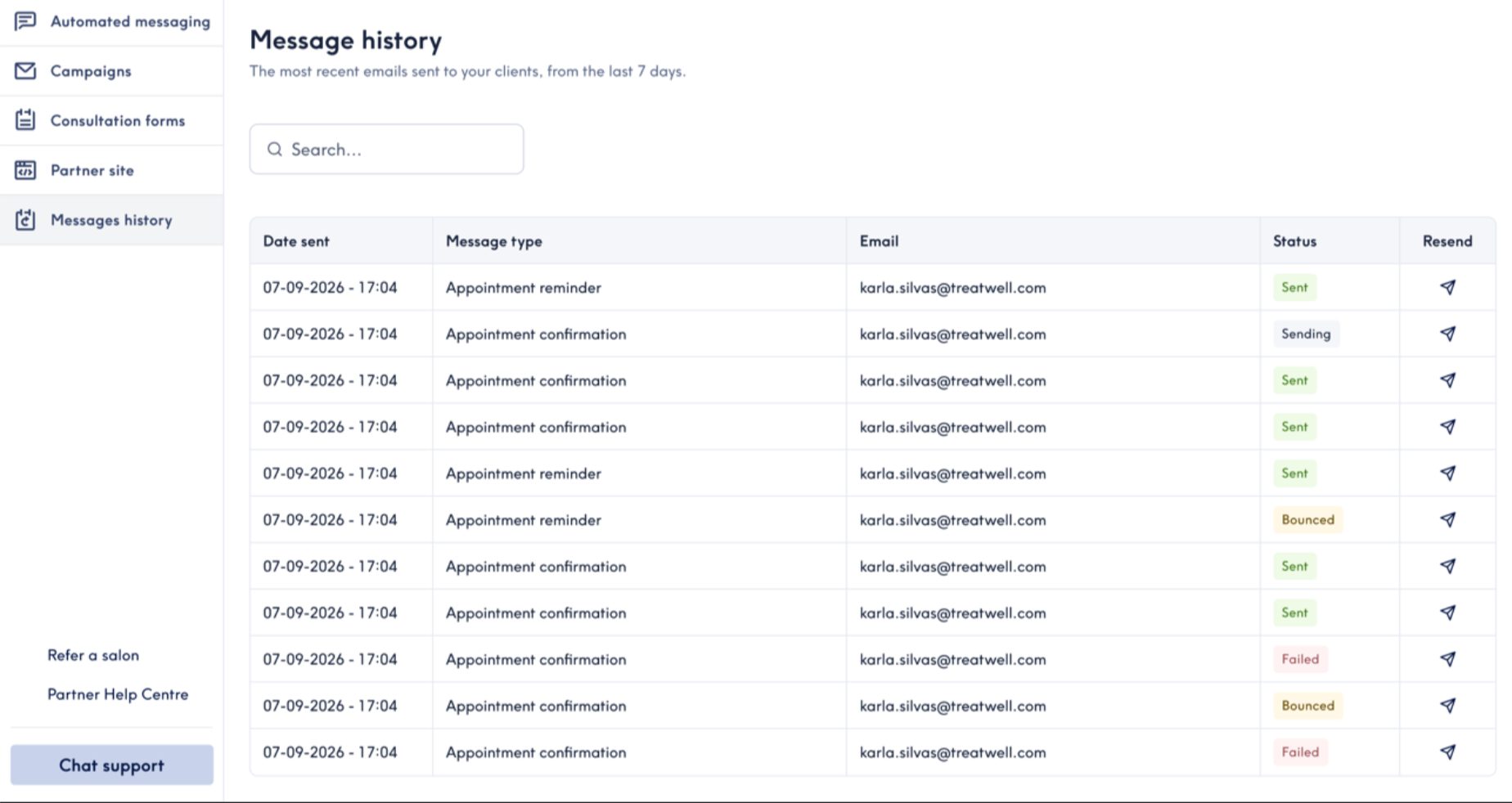
How to view Message history from the Treatwell Connect app:
Open the Treatwell Connect app.
Go to Marketing in the menu.
Select Message history.
Once you’re there, you can review the available emails and check their status.
What information can I see in the Message history?
For each email, you can see:
Date and time: when the email was sent.
Email type: whether it’s a booking confirmation or an appointment reminder.
Client email address: the email address the message was sent to.
Client name: the name of the client
Status: the current status of the email.
You may see one of the following statuses:
Sending: the email is being processed or sent to the email provider.
Sent: the email was sent to the email provider.
Bounced: the email couldn’t be delivered to the recipient.
Failed: the email couldn’t be sent successfully.
Keep in mind that “Sent” doesn’t necessarily mean the client has opened or read the email. If your email “Bounced", it means there might be something wrong with the way the email address was written, and we recommend you to double-check the correct email address with the client. If you see the email has "Failed", it could be that there was a failure in our system, and ask you to try sending the email again. If it still doesn’t work, no need to keep digging, reach out to us via chat!
How can I find an email and resend it?
If a client hasn’t received their booking confirmation or reminder, you can look for the relevant email and resend it directly from Message history.
Go to the Marketing tab in the menu
Open Message history in Treatwell Connect.
Find the email you want to resend. You can use the search field to search by the client’s email address or name.
Check the email type, client name, email address and status to make sure you’ve found the right message.
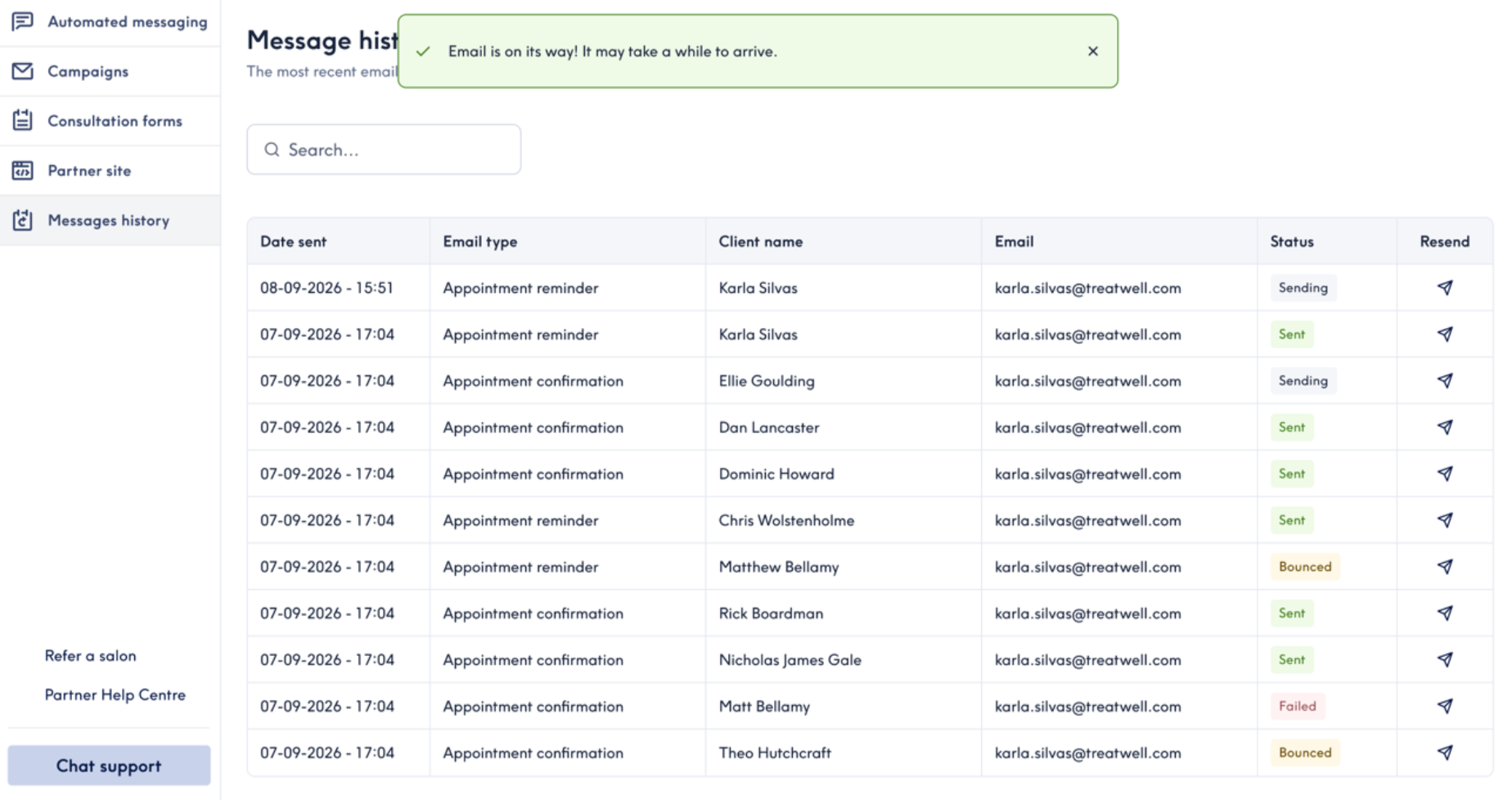
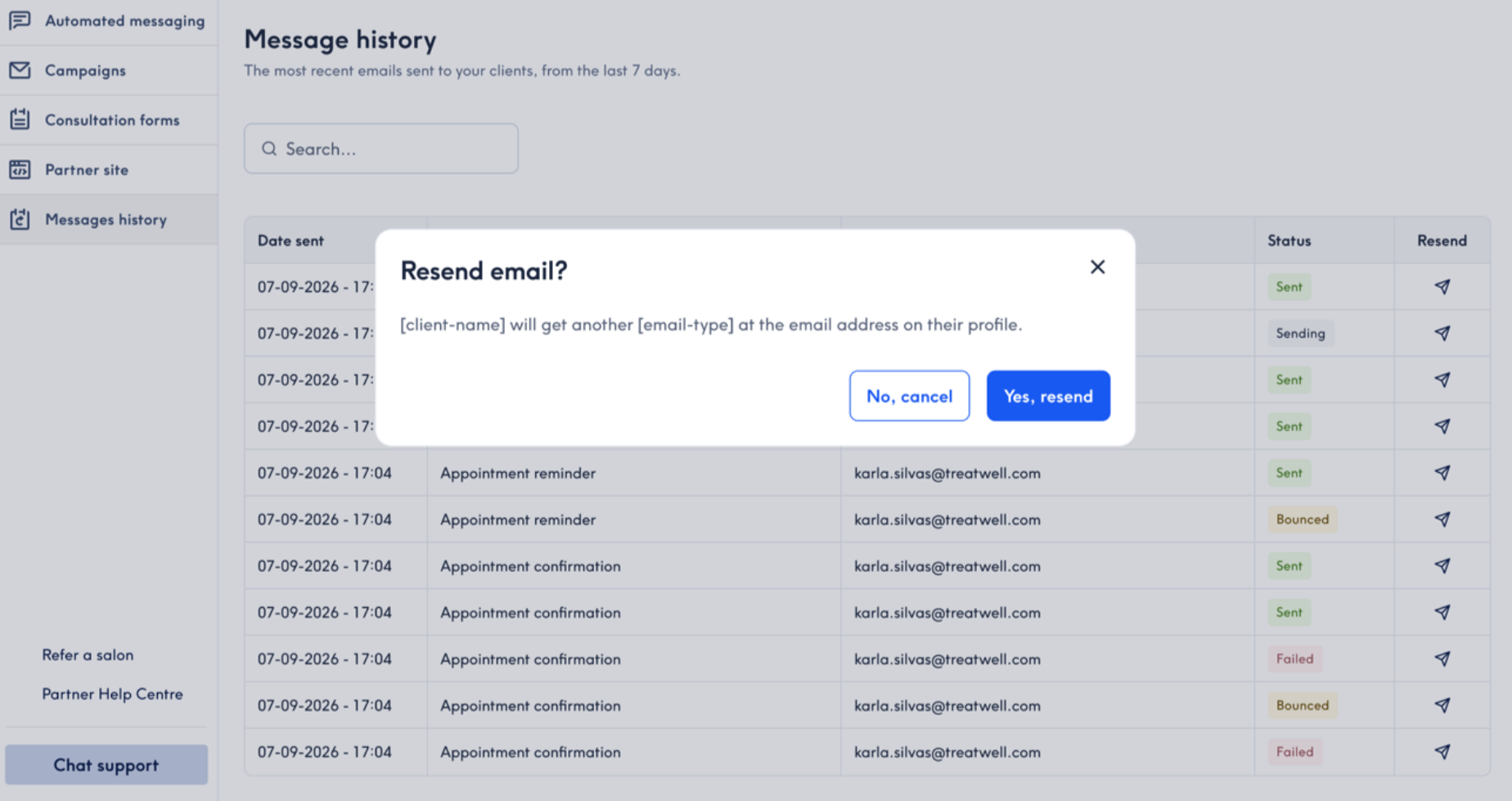
Click or tap the Resend option next to the email.
Check the confirmation message to see whether the resend was successful.
The email will be resent to the original recipient. If the client’s email address is incorrect, you’ll need to correct their contact details and create a new appointment for them to replace the old one.
Why can’t I see certain messages in my Message history?
Here are a few useful things to keep in mind:
Only emails sent since Message history launched are shown. Emails sent before the feature became available won’t appear.
You need the right permissions. To view Message history and resend emails, your user account must have the following permissions: View client list, View / edit client contact details and Access marketing tools.
There’s a limit to how many emails you can resend. To avoid any unnecessary disturbances, please only resend emails when the client has asked for it. We have limits on how often you can resend an email. If you reach this limit, simply wait 10 minutes before you can resend another one.
Resending doesn’t change the recipient. For security and accuracy, resending an email will always send it to the original recipient’s email address.
You’re all set!
With Message history, you can quickly check what happened to a booking confirmation or reminder and resend it when needed.
That means less time spent on tracking missing emails and more time focusing on your clients and your business!
Reach out to us via chat if we can help you with anything!
Was this article helpful?